Associate and clear duplicate personal spaces in Confluence Cloud
Platform Notice: Cloud Only - This article only applies to Atlassian apps on the cloud platform.
Summary
If you create a personal space and then import it from another Confluence instance, you might end up with duplicate personal spaces. These spaces will have the same title and author but different content.
Solution
Before you begin
To send a space to trash, you need space admin permissions for that space. App admins can also trash spaces, including personal spaces.
Only a Confluence admin can restore or permanently delete a trashed space.
You can't create a new personal space while the current personal space is in the trash. The trashed personal space must be permanently deleted first.
Send a space to trash
Before you send a space to trash Duplicate personal spaces can have the same title and author but different content. Before you remove either one:
Open both personal spaces and compare their content.
Identify the migrated space you want to keep as the personal space associated with the profile.
Confirm that any content you still need from the other space has been moved or accounted for.
Consider creating a CSV export of the space you plan to remove as a backup. Don't use the matching title alone to decide which space to remove.
Once that's done, to avoid duplicates and allow the user to use the migrated space as the one associated with the profile, the following steps can be performed:
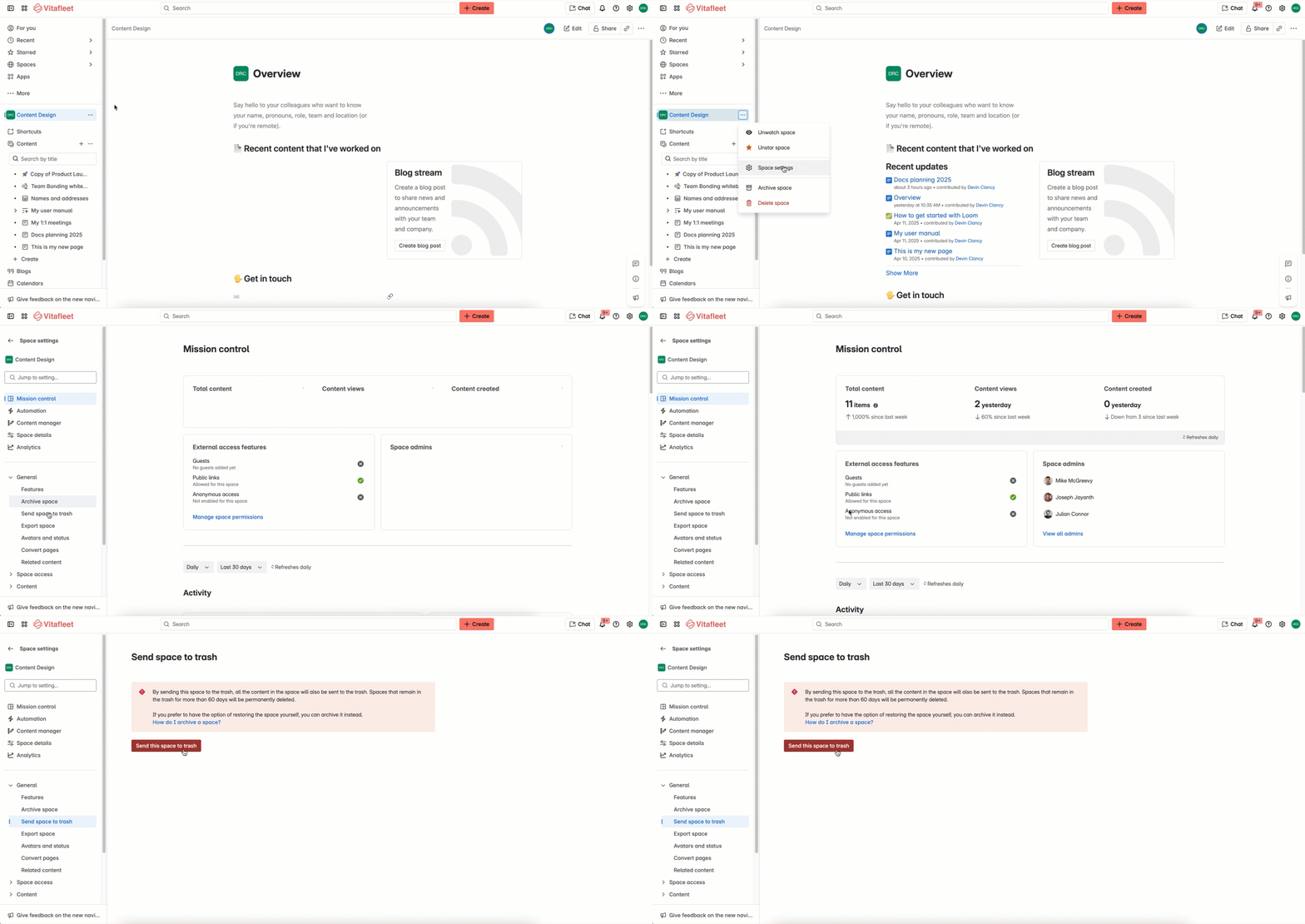
Next to your space's name in the sidebar, select More actions (•••), then Space settings.
Open the General menu, then select Send space to trash.
Select Send this space to trash.
Confirm you want to Send to trash.
You can Archive instead or Cancel the process at this point.
Permanently delete a space
Permanently deleting a trashed space (and all its content) can't be undone.
Before you permanently delete the space
Open the personal space you intended to keep and confirm that it contains the content you need.
Go to Confluence administration > Data management > Trashed spaces and confirm that the space listed is the duplicate you meant to remove.
If you're not sure which space was trashed or whether the content you need is present, don't permanently delete it. A Confluence admin can select Restore space under Action to return the space and all of its content.
Note: Spaces that stay in the trash for at least 60 days are permanently deleted automatically. Finish your checks before then.
To permanently delete a space:
Select Confluence administration.
From under the Data Management section of Settings, select Trashed spaces.
For the space that you want to delete, select Permanently delete under Action.
Confirm deletion by selecting Delete this space.
Depending on the size of the space, deletion can take up to a few hours. A progress bar will show the time elapsed, estimated time remaining, and the percent completed.
Was this helpful?