How to add a Jira kanban board to a Confluence page
Platform Notice: Data Center Only - This article only applies to Atlassian apps on the Data Center platform.
Note that this KB was created for the Data Center version of the product. Data Center KBs for non-Data-Center-specific features may also work for Server versions of the product, however they have not been tested. Support for Server* products ended on February 15th 2024. If you are running a Server product, you can visit the Atlassian Server end of support announcement to review your migration options.
*Except Fisheye and Crucible
Summary
Jira Gadget
The Agile Wallboard gadget is a Jira gadget that can be made available in Confluence, but it is not there by default. To use it, you need an application link between Jira and Confluence and the gadget has to be registered in Confluence.
Please see this guide for step by step instructions: Registering External Gadgets
Which method do I need?
If you want to embed... | Use... |
A live, interactive Jira kanban board | Agile Wallboard gadget (this article) |
A static list of issues from a JQL query | Jira Issues macro (built-in) |
A summary of issue counts/status | Jira Chart macro (built-in) |
Before you start
Confirm the following before attempting:
An application link is configured between Jira and Confluence (Administration (⚙️) → General Configuration → Application Links (or directly via
<baseURL>/admin/listapplicationlinks.action))You have Confluence admin permission to register external gadgets
You have access to the Jira board you want to embed
Both Jira and Confluence are running supported Data Center versions with a functioning Application Link (OAuth or Trusted Application authentication configured)
This document will walk you through all of the steps required to set up an integration between Confluence & Jira in order to embed a Jira kanban board onto a Confluence page.
Solution
It's possible to display a Kanban board from Jira inside of your Confluence instance through an External Gadget setup utilizing the Agile Wallboard Gadget macro. Utilizing gadgets requires that Confluence and Jira are first integrated through Application Links.
To set up:
First, make sure that the two instances can integrate and talk to each other by creating an Application Link among the systems if one does not already exist.
Grab the Base URL of your Jira instance and head to <confluenceBaseURL>/admin/viewgadgetdirectory.action in Confluence
Click on the Gadget Feeds tab. Paste the JIRA Base URL here and click Add.
Create a test page. Open the macro browser and search for Agile Wallboard Gadget and select it.
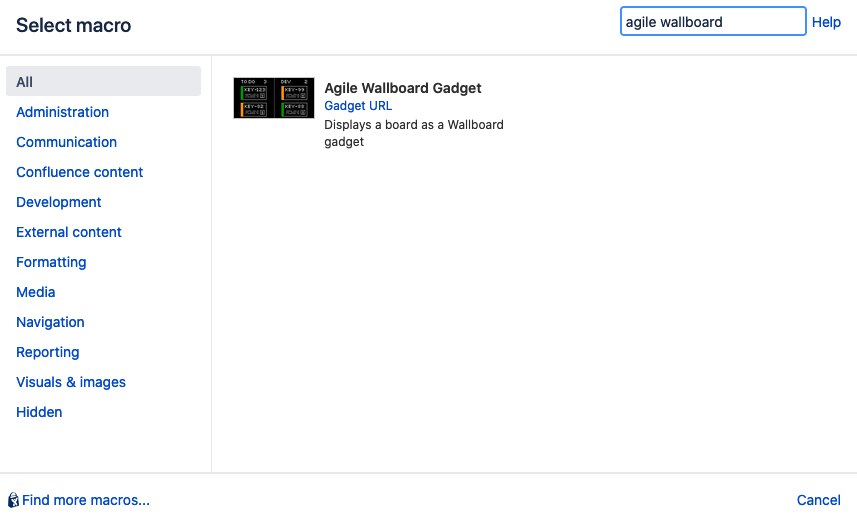
⚠️ Due to CONFSERVER-78282 - Allowlist for Application Link disable incoming traffic by default causing Confluence fail to parse External Gadget on each Restart you may not see external gadget(s) until the Allowlist is enabled
From here, you will need to authenticate through to Jira by clicking the Login & Approve dialog from the configure macro modal.
Configure the kanban board of your choice and save your changes. You should now display the wallboard on the page.
Verification
After adding the gadget:
Confirm the kanban board renders with issues visible (not a blank/error frame)
Test from a different authenticated user (non-admin) to confirm the gadget renders correctly for regular users and that the OAuth 'Login & Approve' flow works for first-time users
Confirm clicking an issue navigates to the correct Jira instance
Refresh the Confluence page and confirm the gadget reflects the current board state from Jira
When this won't help
This article does not cover:
Confluence Cloud — uses different macros (see Cloud-specific equivalent)
Jira Cloud → Confluence DC integration — has its own connection pattern
Custom JQL-driven boards — use the Jira Issues macro instead
Was this helpful?