How do I ensure excel file with wide columns does not get truncated in Confluence File Previews
Platform Notice: Cloud and Data Center - This article applies equally to both cloud and data center platforms.
Support for Server* products ended on February 15th 2024. If you are running a Server product, you can visit the Atlassian Server end of support announcement to review your migration options.
*Except Fisheye and Crucible
Summary
This article explains how to adjust the page layout of an Excel file when wide columns or a large number of columns are truncated in Confluence File Preview. Confluence File Preview displays the Excel document according to how it would look when printed. The preview depends on the width of the document itself.
For example, below is a sample Excel file with a huge number of columns:
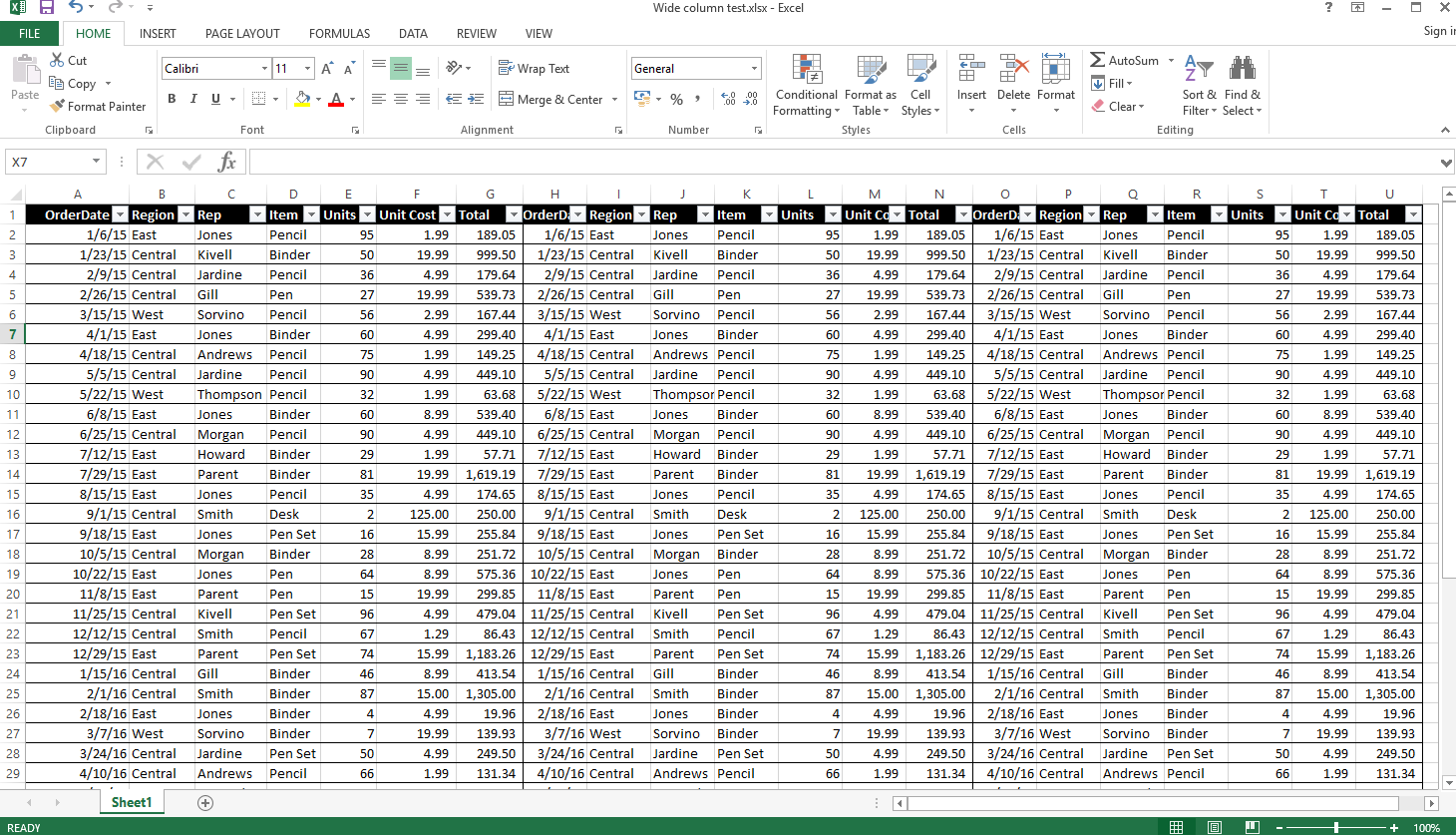
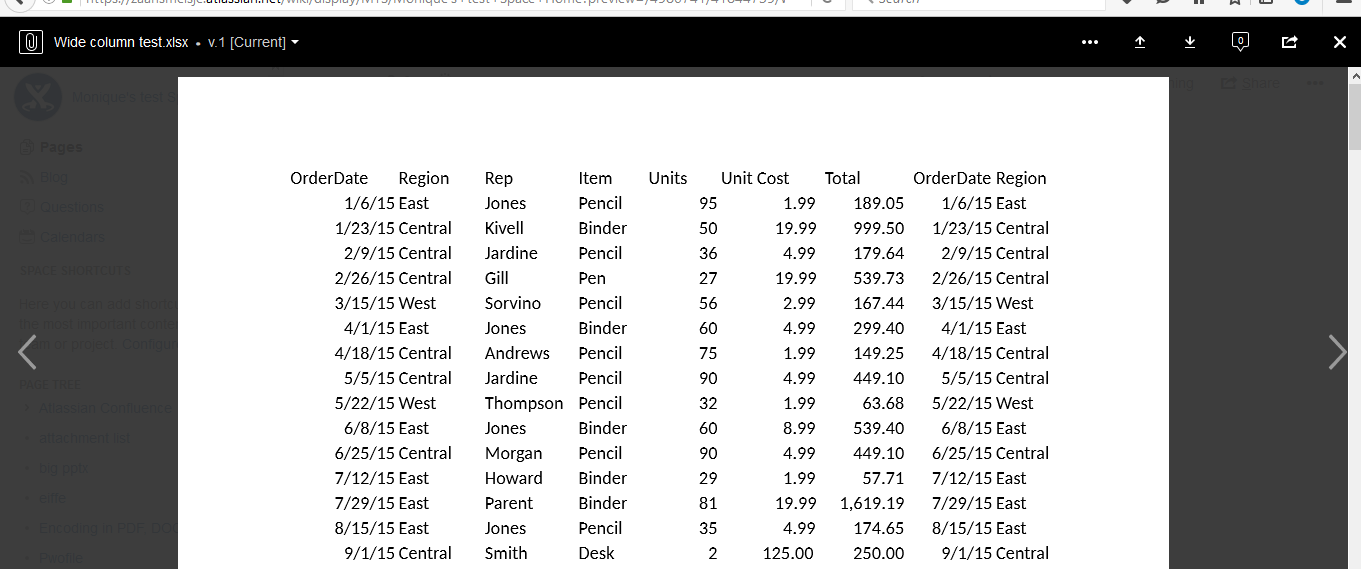
Upon uploading to confluence, the columns will be truncated and will be displayed as below:
Solution
The preview in the "file-preview" macro depends on the width of the document itself. The Confluence File Preview macro will display the Excel document as it is suppose to look like, if we were to print the file.
In order to fit the width of the document, we can modify the layout of the Excel page by:
Open the Confluence page containing the Excel attachment.
Select
...(More actions) in the top-right corner > Attachments (or view the attachment details on the page).Download the Excel file to your computer.
Open the file in Microsoft Excel, select the Page Layout tab, and in the Scale to Fit section, set Width to 1 page (or adjust Page Setup to fit 1 page wide).
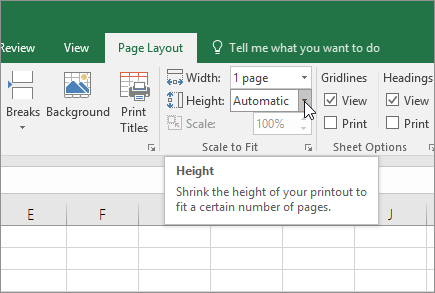
Save the changes to the Excel file.
In Confluence, go back to
...> Attachments and upload the updated Excel file (using the same filename so it saves as a new version) or drag and drop the updated file onto the page.Reload the Confluence page and open File Preview to confirm the entire table fits within the preview window.
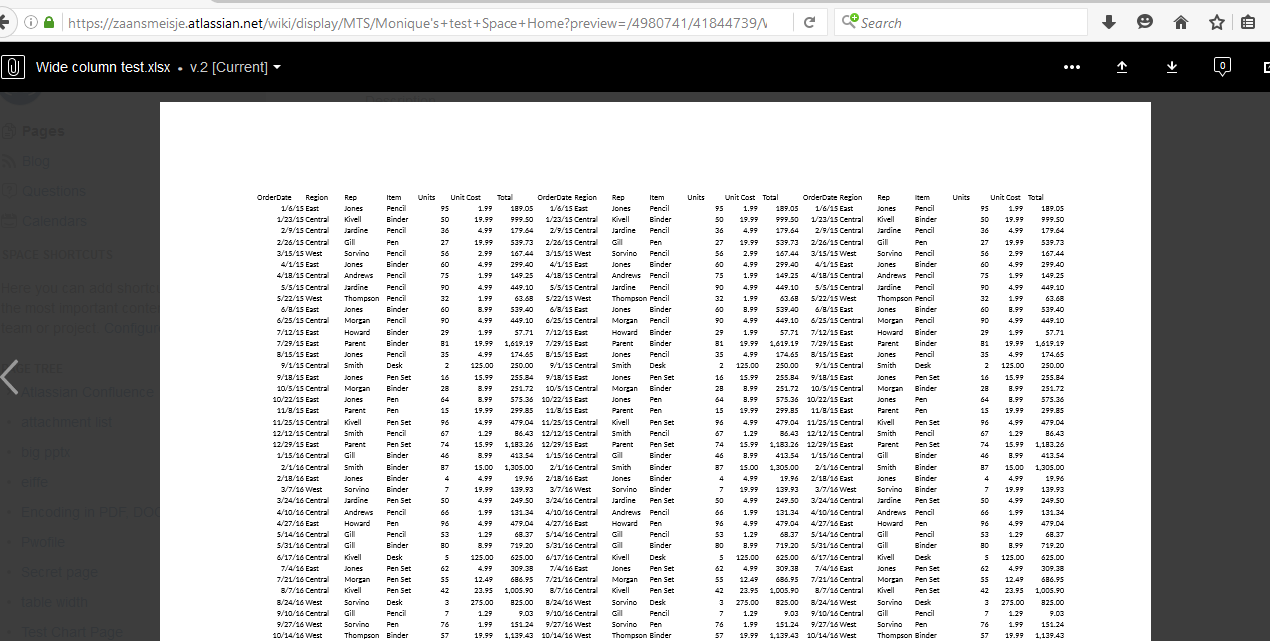
Other Notes
Other Excel page-layout settings can also affect the Confluence File Preview:
Setting Orientation to Landscape changes the orientation of the preview.
Changing Page Margins also changes the preview. The location of Page Layout settings varies between Microsoft Excel versions.
Was this helpful?