Confluence Editor Automatically Adds Line Break Before or After a Macro
Platform Notice: Data Center Only - This article only applies to Atlassian apps on the Data Center platform.
Note that this KB was created for the Data Center version of the product. Data Center KBs for non-Data-Center-specific features may also work for Server versions of the product, however they have not been tested. Support for Server* products ended on February 15th 2024. If you are running a Server product, you can visit the Atlassian Server end of support announcement to review your migration options.
*Except Fisheye and Crucible
Summary
Does this apply to me? This article applies if:
You are using the Confluence legacy editor (not the new editor introduced in Confluence DC 7.0+)
The macro was originally added by copy-pasting from an external source (website, Word document, or another application)
The macro storage format contains a
<div>wrapper around the macro (visible only via the Source Editor plugin)
If you created the macro fresh in the Confluence editor and the line break appeared, this is a different issue — contact Atlassian Support.
Symptoms
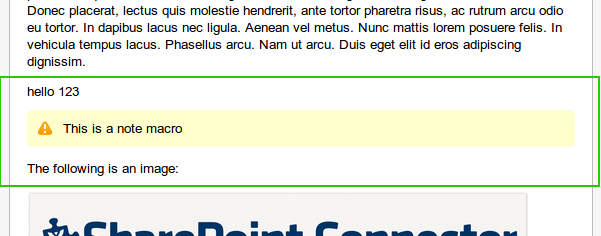
When you have a macro in a Confluence page, for example looks like this:
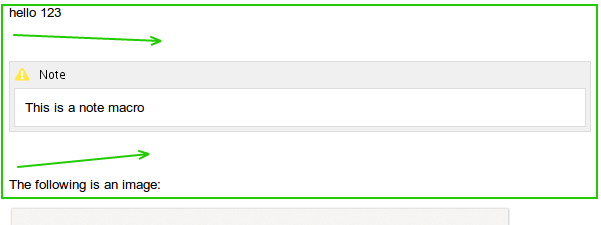
when you edit the page, there will be a linebreak automatically inserted before or/and after the macro, like this:
Diagnosis
Install Confluence Source Editor plugin and edit the source (storage format) of the page. For the above example, it should look like this:
ℹ️ Please note that the Source Editor plugin is a non supported app.
<p>hello 123</p>
<div>
  <p> </p>
  <ac:macro ac:name="note">
    <ac:rich-text-body>
      <p>This is a note macro</p>
    </ac:rich-text-body>
  </ac:macro>
  <p> </p>
</div>
<p>The following is an image:</p>
Note that there is new <p> tag added automatically at the beginning and the end of the note macro. This is how the storage format look like before editing the page:
<p>hello 123</p>
<div>
  <ac:macro ac:name="note">
    <ac:rich-text-body>
      <p>This is a note macro</p>
    </ac:rich-text-body>
  </ac:macro>
</div>
<p>The following is an image:</p>
Note that there is<div> tag wrapping the "note" macro. By right, the default storage format for such content should look like this:
<p>hello 123</p>
  <ac:macro ac:name="note">
    <ac:rich-text-body>
      <p>This is a note macro</p>
    </ac:rich-text-body>
  </ac:macro>
<p>The following is an image:</p>
Cause
The cause is that the note macro was wrapped within <div> tag. Confluence editor will add a line break automatically before an opening <div> tag and after a closing </div> tag. Such content format isn't possible to be created from Confluence editor from scratch. So far our theory is that this could be caused when the content was copy pasted from external source (site or Microsoft Word).
Solution
Workaround
Install Confluence Source Editor plugin
ℹ️ Please note that the Source Editor plugin is a non supported app.
Edit the source of the page using Confluence Source Editor plugin. Remove the unnecessary
<div>tag from the content and save it. Now there shouldn't be any new line break added automatically every time you edit the page.
Another workaround, valid also in Cloud (above plugin is not available for Cloud instances), is to press SHIFT+ENTER instead of ENTER to go to a new line without adding a new paragraphs/div.
New editor alternative
Using the new Confluence editor (7.x and later)?
The new editor introduced in Confluence 7.x handles macro storage format differently and is less prone to this issue. If you are on Confluence 7.x or later and still experiencing unwanted line breaks around macros, this may be a separate issue — see Dark Features in Confluence for in Confluence for advanced editor configuration, or contact Atlassian Support for further diagnosis.
How to confirm the fix worked
After removing the
<div>wrapper via the Source Editor, save the page.Exit edit mode and view the page — the extra line breaks should no longer appear around the macro.
Re-enter edit mode — confirm no new line breaks are added on the next edit cycle.
If line breaks reappear on the next save, the content likely has additional
<div>wrappers — repeat the Source Editor check.
Was this helpful?