What are the differences between "Continue with Microsoft" versus SAML SSO?
Platform Notice: Cloud Only - This article only applies to Atlassian apps on the cloud platform.
Environment
Atlassian Cloud
Atlassian Guard
Microsoft Entra ID SAML SSO with Atlassian Cloud enterprise application
SSO enforced authentication policy
Context
Users have several options when logging into Atlassian Cloud with their Atlassian Accounts. In cases where the Atlassian Organization has SAML SSO configured using Microsoft Entra ID, some users may mistake it for the "Continue with Microsoft" option. This article seeks to address all the different options.
"Continue with Microsoft" isn't SAML SSO
Continue with Microsoft is a third-party login that uses OAuth/OpenID Connect (OIDC). SAML single sign-on (SSO) is different: your organization admin sets it up with Atlassian Guard to connect Atlassian to your identity provider. Learn more about logging in with a third-party account
Summary
When unauthenticated users visit their site URL (Confluence, Jira, etc.) they will be redirected to https://id.atlassian.com/login, the user will then encounter the following screen:
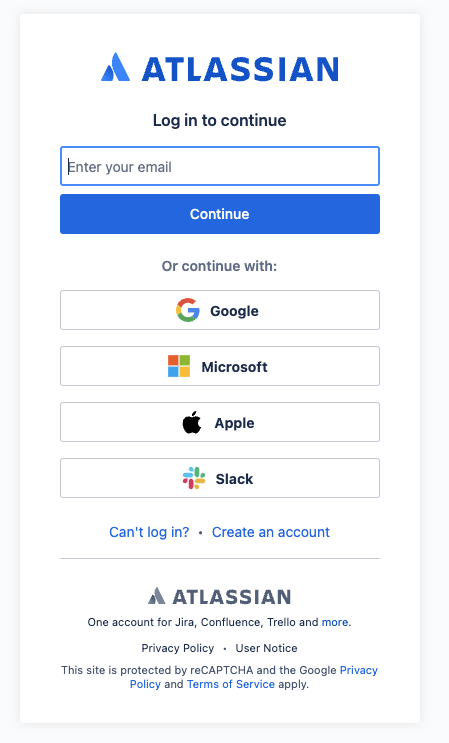
Depending on the user's action, different outcomes may occur:
Use this table to see what happens when a user selects each login option on the Atlassian login screen.
Authentication policy | User selects Continue | User selects Continue with Microsoft |
|---|---|---|
SAML SSO enforced | The user is redirected to your identity provider (Microsoft Entra ID) to authenticate with SAML. | The user is redirected to Microsoft Entra ID to authenticate with OAuth/OpenID Connect (OIDC). If the SAML identifier is the user's email address, it matches the OAuth identifier and SAML authentication is triggered. |
SAML SSO not enforced or not configured | The user is prompted to enter their Atlassian account password. | The user is redirected to Microsoft Entra ID, and the OAuth/OIDC login continues. |
If the user is part of an Authentication Policy with SAML SSO enforced and clicks on Continue:
The user will be directed to your IdP (Microsoft Entra ID) for authentication using SAML.
If the user is part of an Authentication Policy with SAML SSO enforced and selects Continue with Microsoft:
The user will be redirected to Microsoft Entra ID to use their Microsoft Account for authentication.
This process utilizes the OAuth/OIDC protocol, not SAML. However, if the SAML identifier is the user's email address, it matches the OAuth identifier and SAML authentication is triggered.
It's important to note that an enterprise application named Atlassian in Microsoft Entra ID will be created to facilitate this login method;
This is a different application to the Atlassian Cloud enterprise application
The application needs to be approved by an admin, if you want to block the use of this other application you can also decide to modify the Assignment required? to Yes, this will result in the following error to be shown to users during authentication if the Continue with Microsoft option is used:
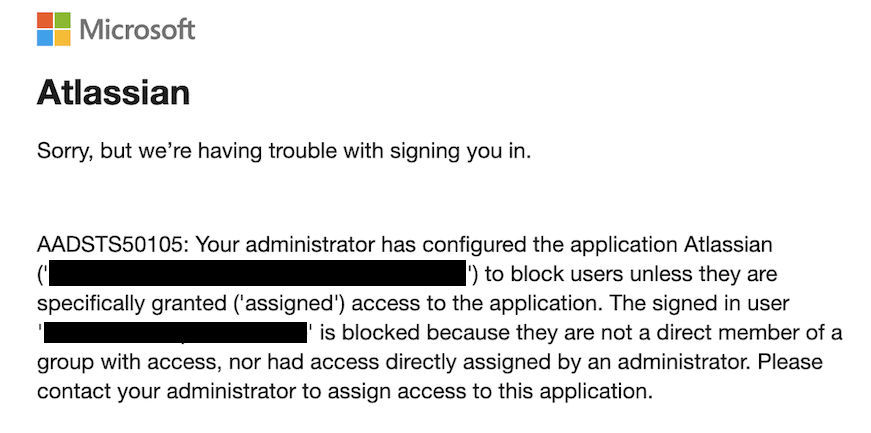
Refer to Log in with a third-party account for further details.
If the user is part of an Authentication Policy without SAML SSO and selects Continue:
The user will be prompted to enter their Atlassian account password
If the user is part of an Authentication Policy without SAML SSO and selects Continue with Microsoft:
The user will be redirected to Microsoft Entra ID to use their Microsoft Account for authentication.
However, because the user is not part of the SSO enforced authentication policy or SAML is not configured in the organization, the OAuth workflow will continue
Same principles to approving the application apply in this use case
"Continue with Microsoft" uses a separate enterprise application
When users log in with Continue with Microsoft, an enterprise application named Atlassian is created in Microsoft Entra ID. This is a different application from the Atlassian Cloud enterprise application that's used for SAML SSO.
An admin must approve the Atlassian application in Microsoft Entra ID.
To block this login method, set Assignment required? to Yes on the Atlassian application. Users who then select Continue with Microsoft will see an authentication error.
Make this change on the Atlassian application only. The Atlassian Cloud application handles your SAML SSO login.
Was this helpful?