Using Terminal in SourceTree
Platform Notice: Data Center Only - This article only applies to Atlassian apps on the Data Center platform.
Note that this KB was created for the Data Center version of the product. Data Center KBs for non-Data-Center-specific features may also work for Server versions of the product, however they have not been tested. Support for Server* products ended on February 15th 2024. If you are running a Server product, you can visit the Atlassian Server end of support announcement to review your migration options.
*Except Fisheye and Crucible
Summary
This article should help users to learn how to access and configure terminal settings in SourceTree
Solution
This page:
General
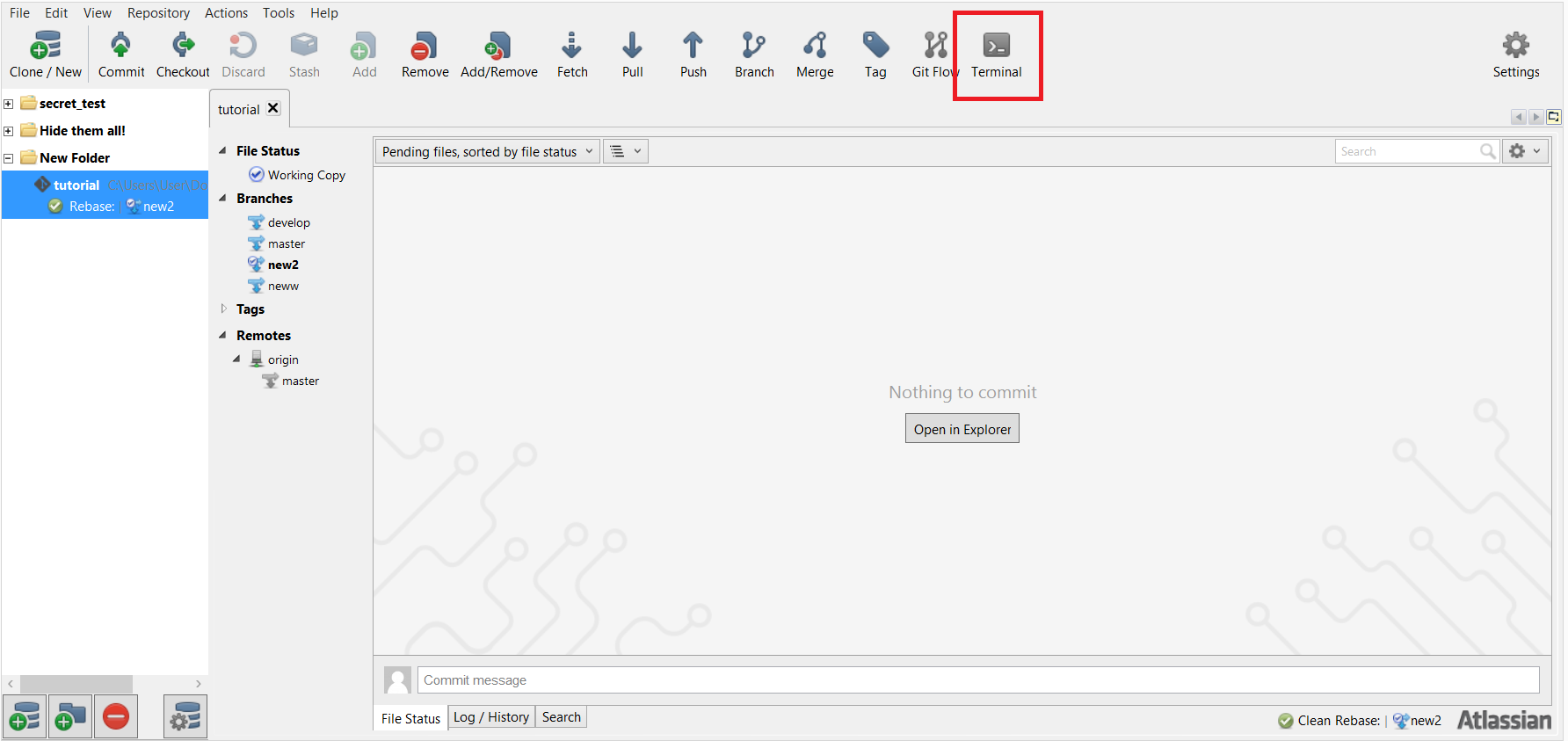
You can open a terminal from within SourceTree by just clicking Terminal button:
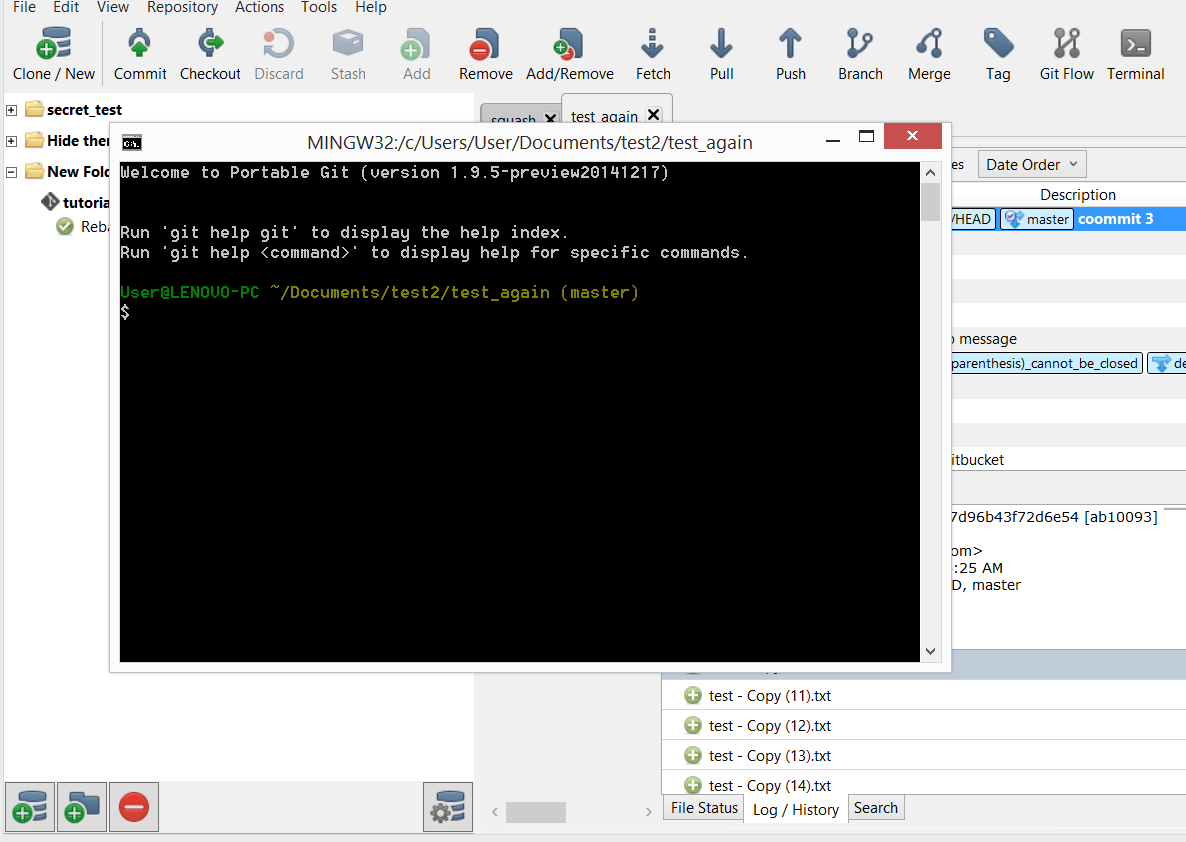
If you open the terminal when a repository tab is opened, the terminal will be opened from the local repository folder:
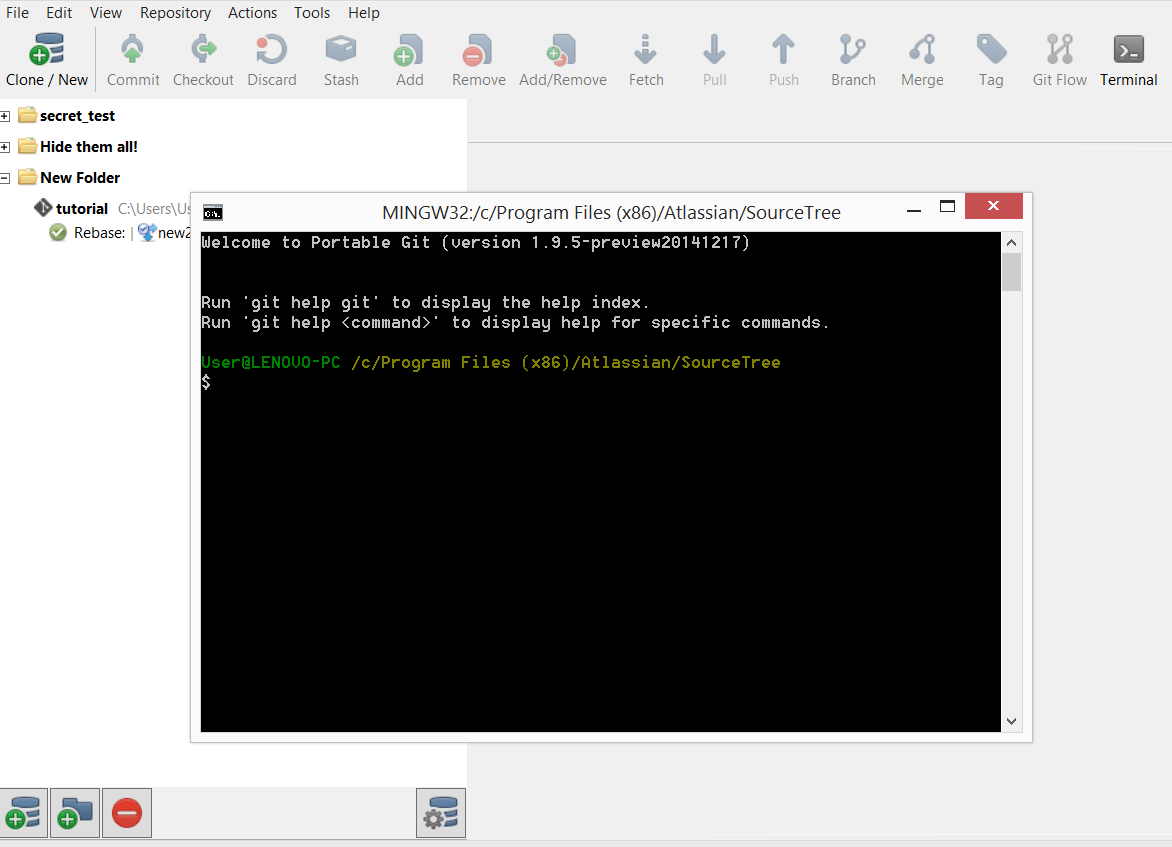
If there are no repository opened at the moment, the terminal will be opened from the SourceTree folder instead:
Functions specific to Windows
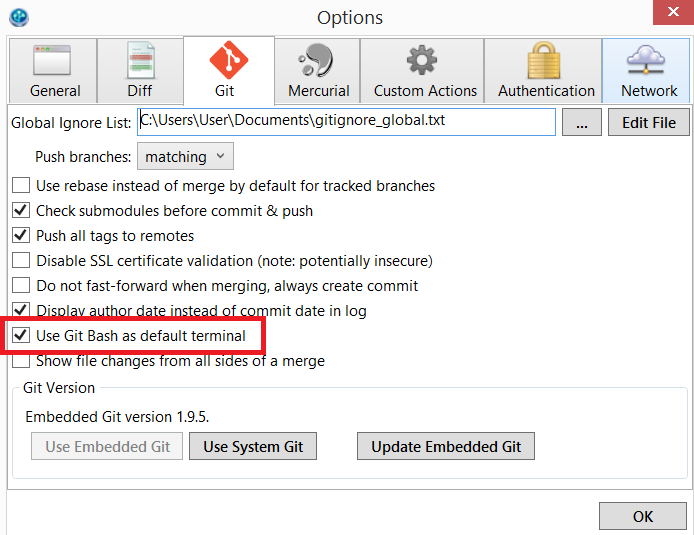
In SourceTree for Windows' option for Git, you can set the terminal button to open Windows' default command prompt or to open SourceTree-integrated Git Bash (by default runs with SourceTree's embedded Git) by checking the Use Git Bash as default terminal checkbox in Tools > Options > Git:
For Mercurial, you can only run it via Windows' command prompt.
Was this helpful?