What Happens When Your Jira Server or Data Center License Expires?
Platform Notice: Data Center Only - This article only applies to Atlassian apps on the Data Center platform.
Note that this KB was created for the Data Center version of the product. Data Center KBs for non-Data-Center-specific features may also work for Server versions of the product, however they have not been tested. Support for Server* products ended on February 15th 2024. If you are running a Server product, you can visit the Atlassian Server end of support announcement to review your migration options.
*Except Fisheye and Crucible
Summary
When a Jira Data Center license expires, what happens to the Jira instance? Will users still be able to log in and create issues? What about the server license, does it expire or is there a license impact on the product?
Solution
Jira Data Center license
When a Jira Data Center license expires, below is an exhaustive list of functionalities that can be done and can't be done:
Can do:
Users can log in and work on (comment/transition/assign, etc.) existing issues
Can administer the system, including creating new users, user groups, and user directories
Can create new issue types, custom fields, screens, workflows, automation rules
Can create and administer projects
Can install new apps and continue to use free apps and apps with valid licenses
Can't do:
Can't create new issues.
Can't browse anymore Assets data from the UI. However Assets data still is retained in the Jira database.
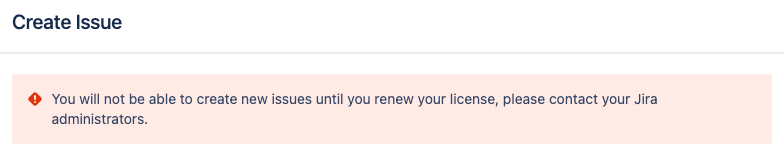
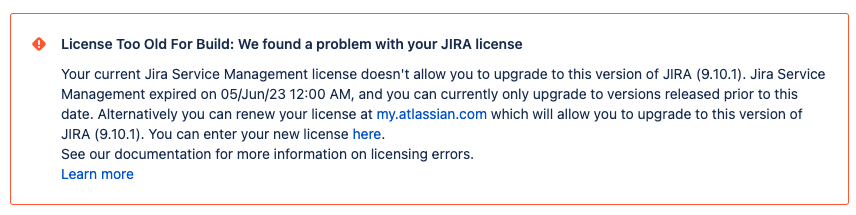
Can't apply the license to Jira versions released after the expiry date:
When there are two products in the same instance
When there are multiple products in the same instance (e.g., Jira Service Management (JSM) and Jira Software) and only one of the licenses expires, the entire instance (all products) will enter read-only mode. To recover write access to the licensed parts of Jira, remove the expired license by navigating to Administration >> Applications >> Versions and Licenses.
Note:
If the expired and removed license is from JSM, the JSM project will continue to be presented as a "Service", but will behave without the JSM features (such as no customer access through portal, no SLA, etc). Uninstallation of the JSM application is not required to regain access; simply removing the expired license is sufficient. If the JSM license will not be renewed, please consider to convert the project type to JSW. If you decide to completely remove JSM, it can be uninstalled via the Administration >> Applications >> Versions and Licenses section. While JSM application data remains in the database for backup purposes, it is no longer be actively accessible through the interface. To safeguard historical data, create a backup of your application server and database before uninstalling JSM.
If the expired and removed license is from JSW, the JSW projects will continue to be presented as "Software", but will lose the agile capabilities (such as Sprint creation, some reports, etc). As above, if the JSW license will not be renewed, please consider to convert the project type to JSM.
Jira Server license
As all server licenses are perpetual, you can use your software into perpetuity. This means the server product will continue to operate in its current state after the maintenance period expires. This is documented in What happens when the included self-managed software maintenance ends?
When a Server license expires, the Jira server and apps will continue to work in the current state, even after the Server end of support date. However, you can't upgrade Jira to a version released after the license expiration date, or not newer than Jira 9.12.13 (which are datacenter only versions). If you attempt to upgrade to a version beyond your maintenance period, the upgrade will fail. In such cases, you can either roll back to the last compatible version or consider transitioning to a Jira Data Center license to unlock access to newer versions
As an example, if your Jira license expired on 14 November 2022:
You will still be able to upgrade to Jira 9.3.1 - Released on 25 October 2022 ✅
But not to Jira 9.4.0 - Released on 15 November 2022 ❌
Alternative solution
If you plan to continue using the products, please contact Atlassian or its partners to purchase the new license. You can also consider migrating to Jira Cloud for immediate access to the latest features and versions. However, to prevent service disruptions in the meantime, you can immediately generate a 30-day trial license:
Login to https://my.atlassian.com
In the Licenses section, click on "New trial license."
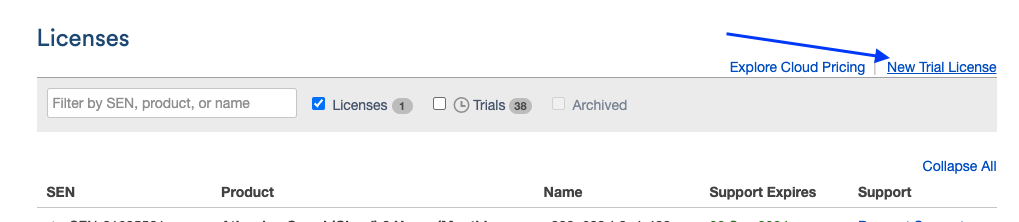
This allows uninterrupted access while you resolve any renewal delays.
Was this helpful?