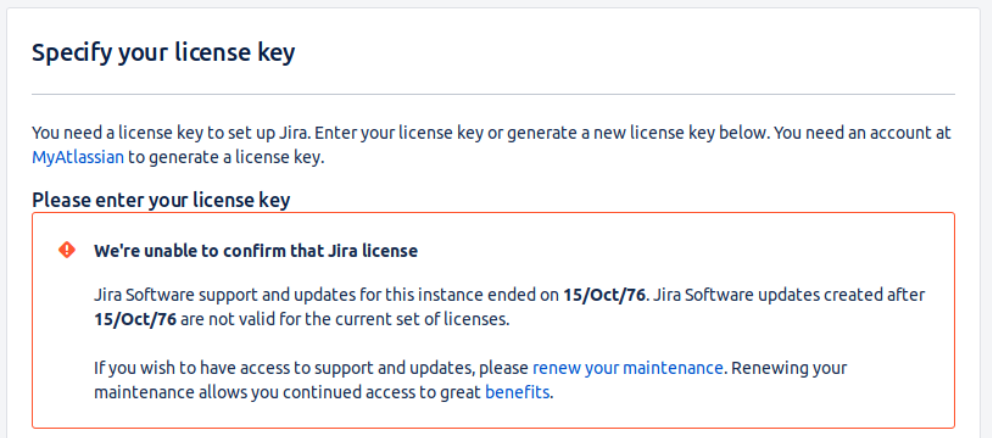
We're unable to confirm that Jira license error during JIRA setup
Platform Notice: Data Center Only - This article only applies to Atlassian apps on the Data Center platform.
Note that this KB was created for the Data Center version of the product. Data Center KBs for non-Data-Center-specific features may also work for Server versions of the product, however they have not been tested. Support for Server* products ended on February 15th 2024. If you are running a Server product, you can visit the Atlassian Server end of support announcement to review your migration options.
*Except Fisheye and Crucible
Summary
While setup JIRA for the first time, the user will need to specify a JIRA License to proceed. While adding the license, JIRA unable to confirm the license and threw below error in UI:
Diagnosis
Environment
JIRA installed in Windows that use a Buddhist Calendar (like Thai for instance).
Diagnostic Steps
Checking the license use, we can see that the license is actually a valid license.
Check the user language format uses in the server, if the server is using a Buddhist Calendar the format would be like below:
user.language.format : th
Cause
The server is using a Buddhist Calendar while JIRA is checking using a Gregorian calendar to check the license.
Solution
Workaround
The workaround is either:
Set the localization back to anything that uses the Gregorian calendar in the server.
OR
Follow KB on Setting properties and options on startup to add below JVM entry to the startup option.
-Duser.language=en -Duser.country=USRestart JIRA for the changes to take effect.
Was this helpful?