Use 'Send Slack message' action in Automation to send a Slack direct message from Jira Service Management Cloud
Platform Notice: Cloud Only - This article only applies to Atlassian apps on the cloud platform.
Summary
JSM automation offers a built-in Send direct message on Slack action, but you can also send a DM with the more flexible Send Slack message action (covered here) when you need custom targeting via the Slack API.
Solution
We are setting up an automation rule that sends a direct message in Slack to the reporter when a comment is made on a work item.
Trigger an automation rule when a comment is made on a work item
Retrieve the email address of the work item's reporter and use the Slack API to obtain the Slack user ID associated with that email address.
Use the obtained Slack user ID to send a direct message to the target user via a Slack bot.
Slack app prerequisites
Setting up the Slack App
Create a Slack app (from api.slack.com/apps).
Add the
users:readandusers:read.emailOAuth scopes.Install the app in your workspace to issue the OAuth token used later in the "Send web request" action.
Obtaining the Slack Webhook URL
Creating an Incoming Webhook: From the Incoming Webhooks setting in Slack, specify a desired destination channel for posts. (Initially, you can use the default #general channel. The configuration to send DMs to each user will be done later.)
Copy the generated Incoming Webhook URL. Later, we will paste this URL into the [Webhook URL] field of the "Send Slack Message" action in automation.
Reference: Use Slack with Automation.
Detailed Setup Instructions
(Optional) Add the action "Log action."
In the Log message, include the following smart value (this is to retrieve the reporter's email address):
retrieve the reporter's email address
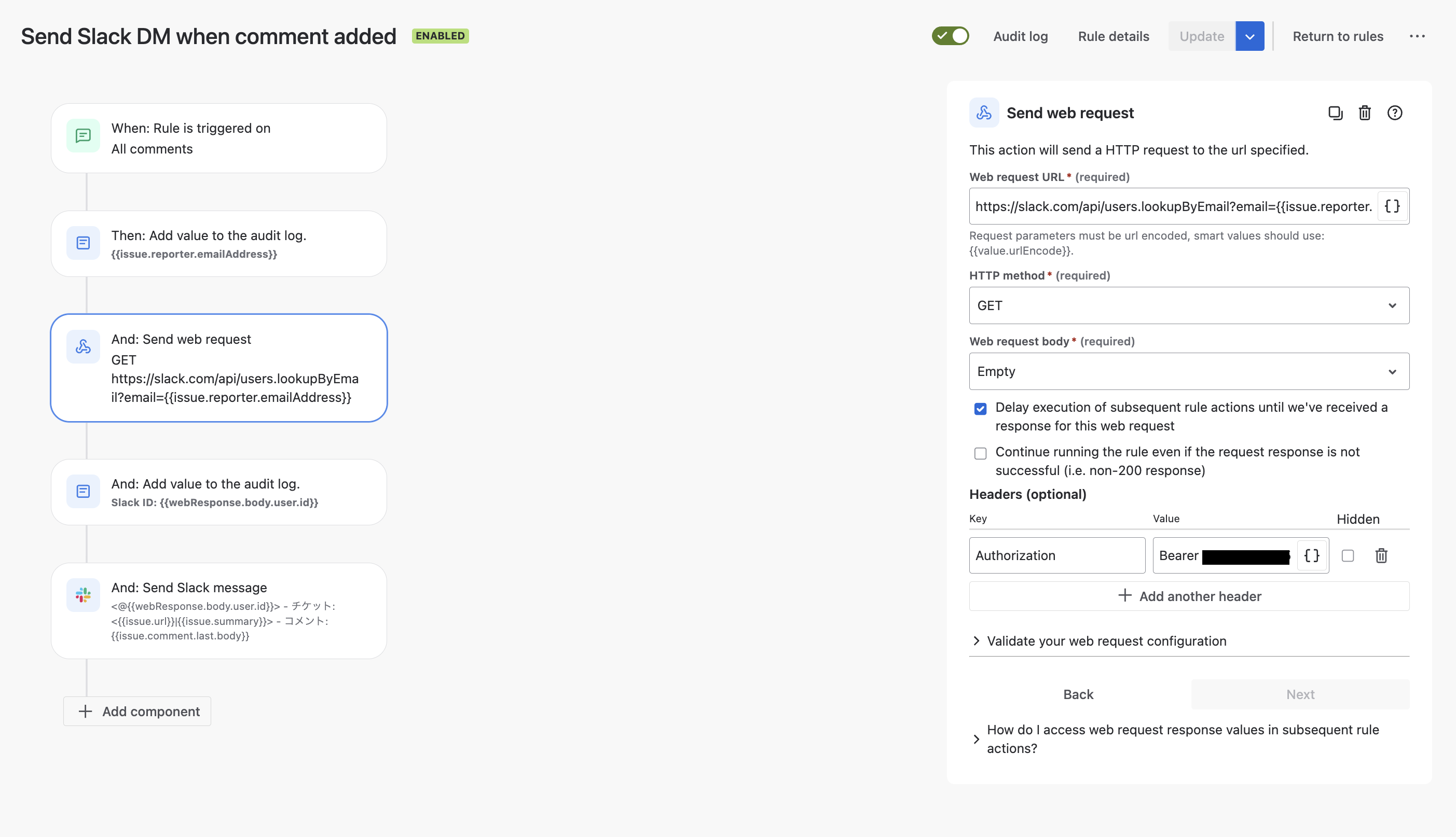
Reporter's email address: {{issue.reporter.emailAddress}}Add the action "Send web request" and set each field as follows:
[Web Request URL]:
Web Request URL
https://slack.com/api/users.lookupByEmail?email={{issue.reporter.emailAddress}}[HTTP method]: GET
[Web request body]: Empty
[Delay execution of subsequent rule actions until we've received a response for this web request]: Checked
[Headers (optional)]
Key:
AuthorizationValue:
Bearer <OAuth access token obtained from the Preparation>
In the Log message, include the following smart value (this is to retrieve the reporter user's Slack ID):
Slack ID
Slack ID: {{webResponse.body.user.id}}
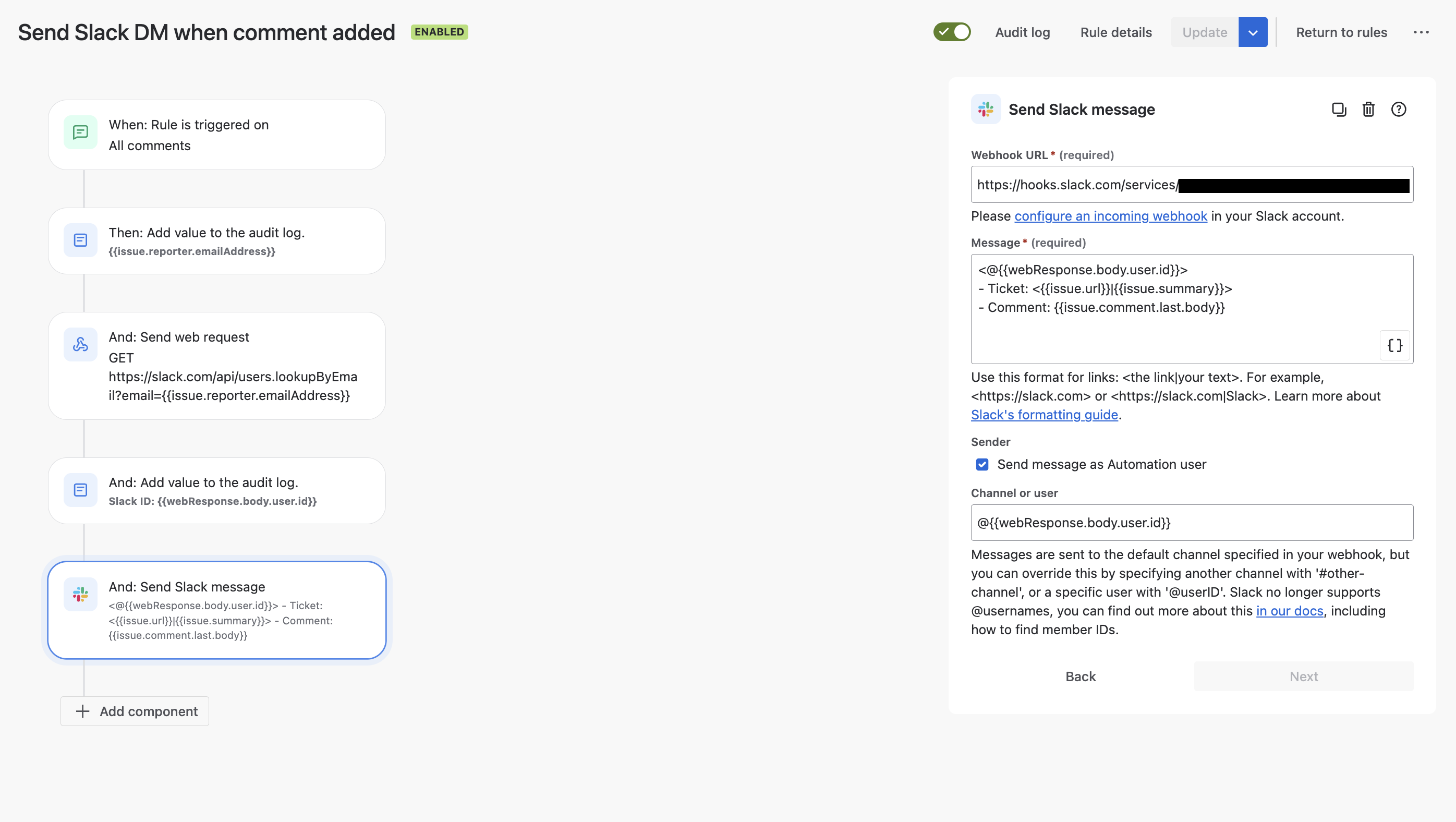
Add the action "Send Slack message" and set each field as follows:
[Webhook URL]: Enter the Incoming Webhook URL obtained during the Preparation.
[Message]: Here, we mention the reporter in a direct message and include a link to the work item as well as an added comment. (You can customize this as you wish.)
Slack message body
<@{{webResponse.body.user.id}}>
- Ticket: <{{issue.url}}|{{issue.summary}}>
- Comment: {{issue.comment.last.body}}
[Send message as Automation user]: Checked
[Channel or user]:
@{{webResponse.body.user.id}}
After setting these up, the automation rule should look like the following:
Trigger the rule (for example, add a comment on a test work item) and confirm the reporter receives the Slack DM; if not, check that the reporter's email resolves to a Slack user ID (the users:read.email scope) in the automation audit log.
Was this helpful?