Transfer products- "Reset user access" settings in the Improved user experience
Platform Notice: Cloud Only - This article only applies to Atlassian apps on the cloud platform.
Summary
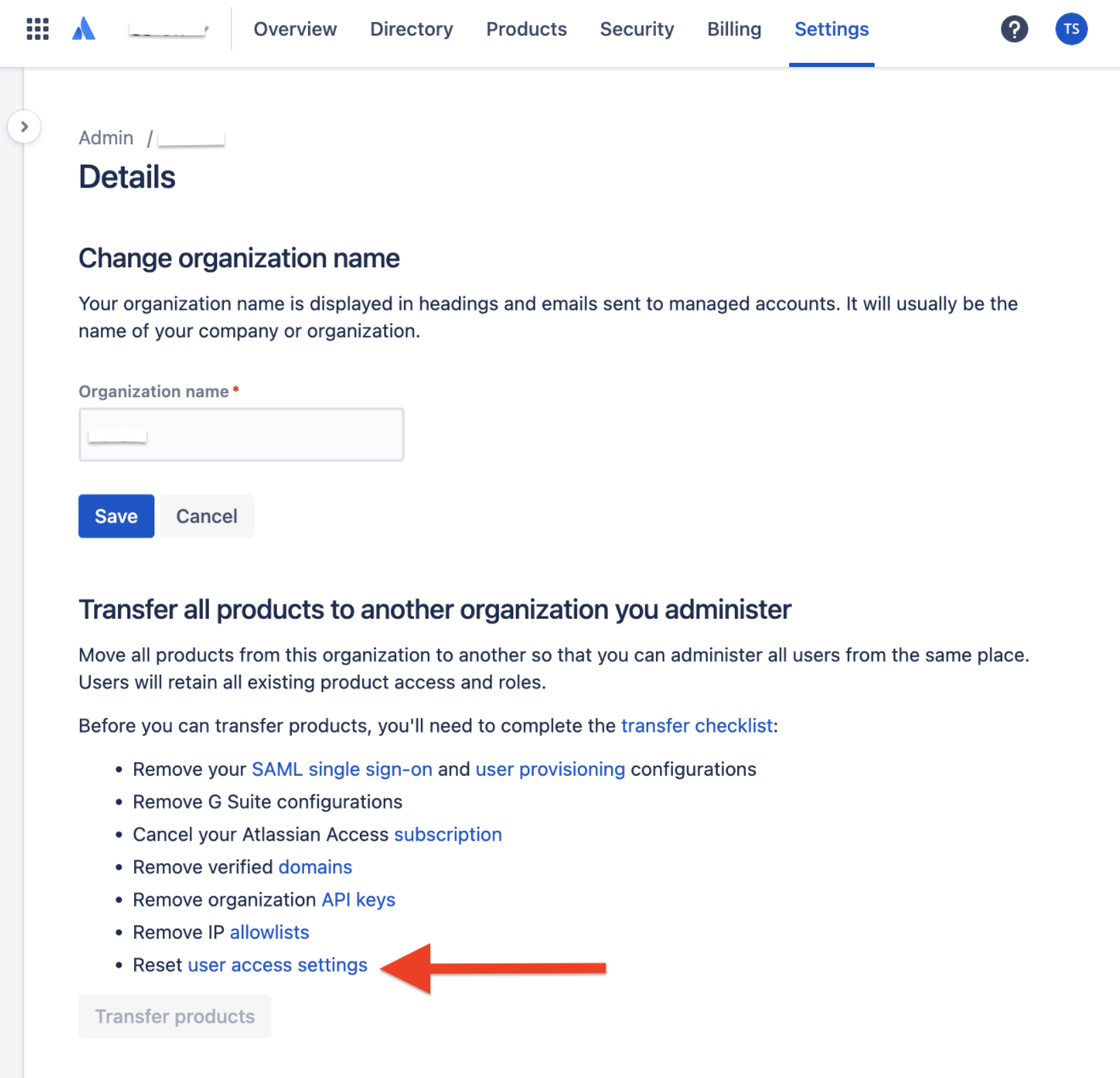
The "transfer products" option will be grayed out if the transfer checklist is not cleared.
If Reset user access settings is present in the checklist, an Organization admin must complete this step.
Solution
Reset user access settings
Visit admin.atlassian.com.
Choose your organization (if more than one).
Select Products in the main navigation.
Select User access settings.
Note: Before confirming the reset, we suggest you capture a screenshot of the setup under 'Any Domain' as a backup.
Your view may vary at this step. The option to reset settings will either appear as linked text in the paragraph or as an option under the More options (...) menu. Before proceeding, verify that your domains have been successfully verified and that all user email addresses are updated to align with the target organization's domain.
Click on reset your user access settings.
Click Reset.
This will reset your approved domains, user invites, and invitation links, from the User access settings page. You can enable these settings again after you transfer your products to the other organization.
The below article outlines the procedure to identify other potential blockers for transferring the products from one Org to another.
Was this helpful?