Review Incorrect License Count for Jira Service Management Cloud Agents
Platform Notice: Cloud Only - This article only applies to Atlassian apps on the cloud platform.
Summary
The count of Jira Service Management licenses is higher than the number of users on the jira-servicedesk-users group.
Solution
Checking the product access
Please note that you must be logged in as a user with site-admin access to perform the following steps.
The first step is to check which groups have the Jira Service Management agent access permission. If you are using SCIM for user provisioning, review your Identity Platform (IdP) SCIM mappings to ensure only designated agents are assigned to groups granting agent access (e.g., 'jira-servicemanagement-users' group). This prevents unintended licenses and permissions for non-agent users.
User Management Experience
In Jira's left panel, click on Jira settings > User management.
On the Admin panel, click on Product access.
The groups with agent access are listed below Jira Service Management.
Any user that is provided with a Service Management application access will be added to the default access group.
Another configuration to keep a watch is users added to the Trusted Role:
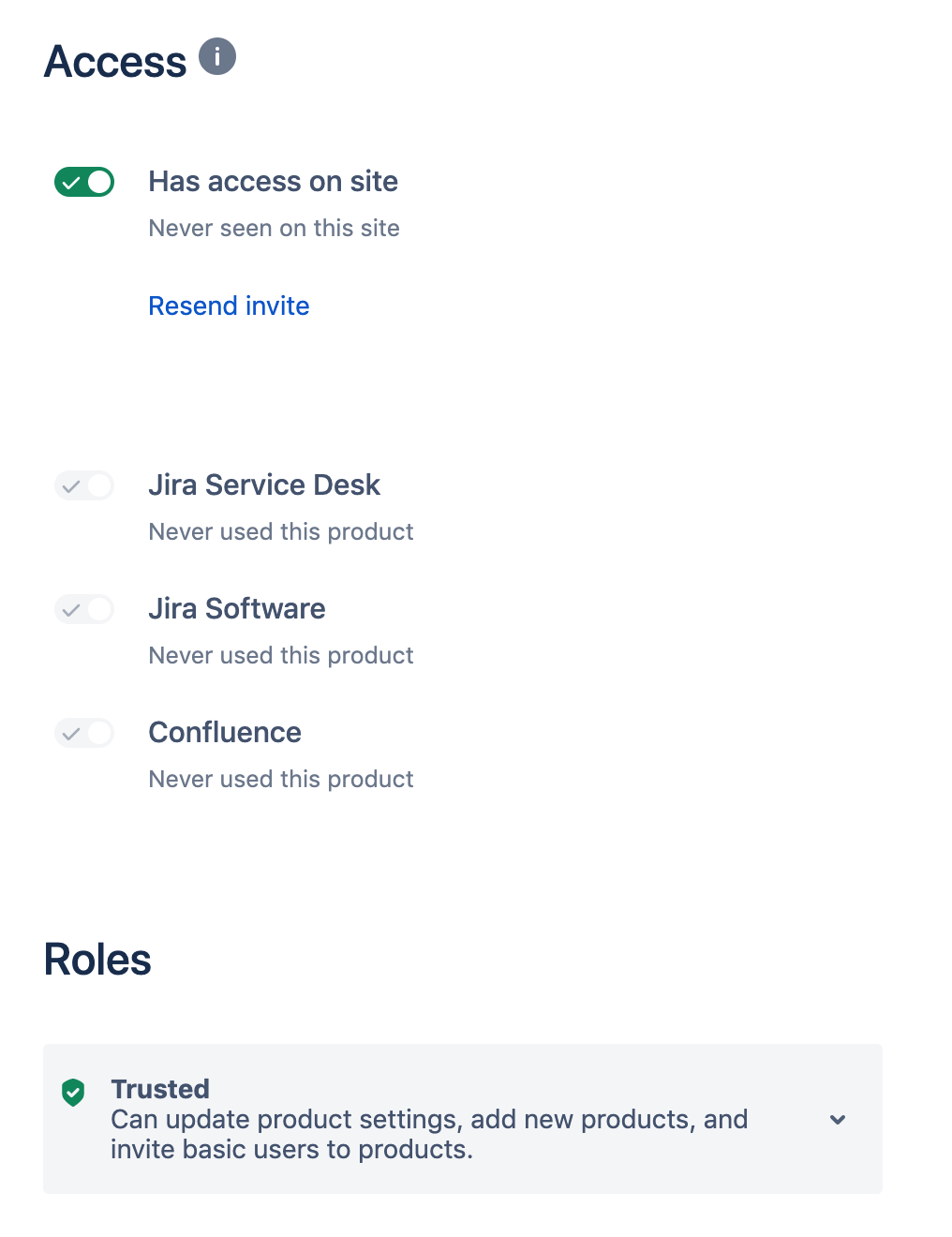
This role will, automatically, assign all the application accesses to the user.
Improved User Management Experience
Go to admin.atlassian.com. Select your organization if you have more than one.
Select Products from the header.
You will see the user count listed beside the product.
Clicking on Manage Users will take you to the licensed users list.
Clicking on Manage Product Access will take you to the groups that have product access.
In the Improved Experience, the Trusted role doesn't exist anymore.
Remove groups from product access
Now that you have identified which groups grant users with Jira Service Management agent access and users in the Trusted Role, you can go ahead and remove those that should not provide licenses.
For SCIM-enabled IdPs:
Access your IdP settings and review SCIM group mappings. Ensure that only agent-designated groups are mapped to jira-servicemanagement-users or any group granting agent permissions.
Update SCIM assignments so non-agents are mapped to customer or other appropriate user groups, not groups granting agent roles.
Save the settings and verify group membership accuracy in Jira administration.
For Users in the groups:
Select the group that you want to remove and click on ••• > Remove group.
Check if the license count matches the number of users on jira-servicedesk-users group and other default or custom groups granting Jira Service Management access. Be aware that changes to roles or group permissions will immediately affect billing and license counts.
For users in the Trusted Role:
Access the user's profile and change their Role to Basic.
Now toggle off the application access of Jira Service Management.
The invoice will depend on how many agents you have on your instance, it means people with the product enabled on their profile and not the Service Management agent permission in the project.
Was this helpful?