"Need admin approval" message when trying to connect email accounts in JSM Cloud
Platform Notice: Cloud Only - This article only applies to Atlassian apps on the cloud platform.
Summary
When trying to connect a Microsoft mail handler for JSM, admins may receive the message "Need admin approval".
Solution
The "Need admin approval" message when connecting a Microsoft mail handler is caused by a Microsoft Entra ID (Azure AD) setting that controls who can grant OAuth consent for apps — not by a Jira misconfiguration.
Details about the error
Once the error appears, the only options available are "Have an admin account? Sign in with that account” and “Return to the application without granting consent,” but neither will connect the desired mail account as a mail handler.
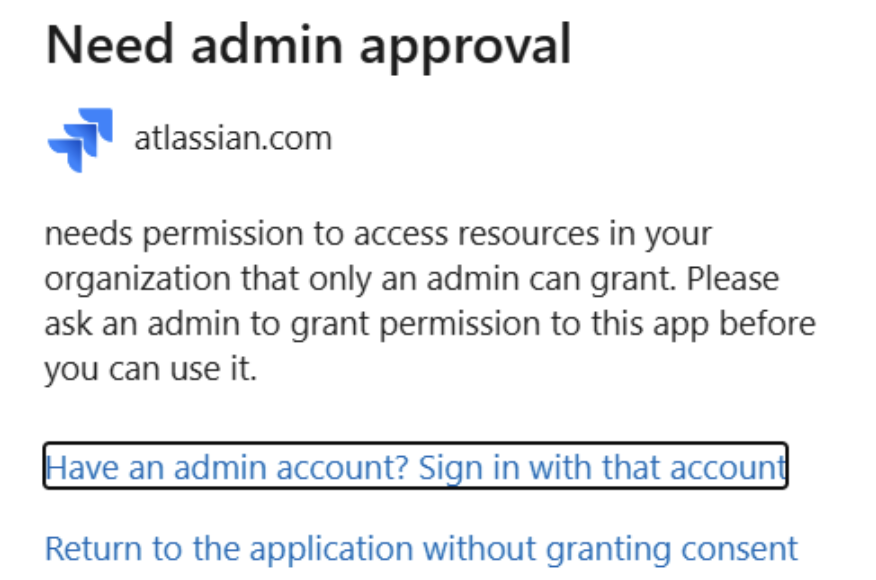
Why does this message appear to Jira admins?
This happens because Microsoft AD has a setting that controls who can perform OAuth connections for apps (this type of connection), and that setting is disabled for users in Microsoft AD. The configuration is explained in the Microsoft documentation: "Configure the admin consent workflow" - Microsoft Entra ID.
Choosing "Have an admin account? Sign in with that account" will connect the admin account as the mail handler — not the mailbox you intended. Choosing "Return without granting consent" leaves the connection unmade. Neither option connects to the desired account.
Admin consent requests in Microsoft AD
Because this is a Microsoft Entra setting, your organization's Microsoft AD admin must review the admin-consent configuration — see Configure the admin consent workflow (Microsoft Entra ID). Then retry the mail handler connection to the intended mailbox.
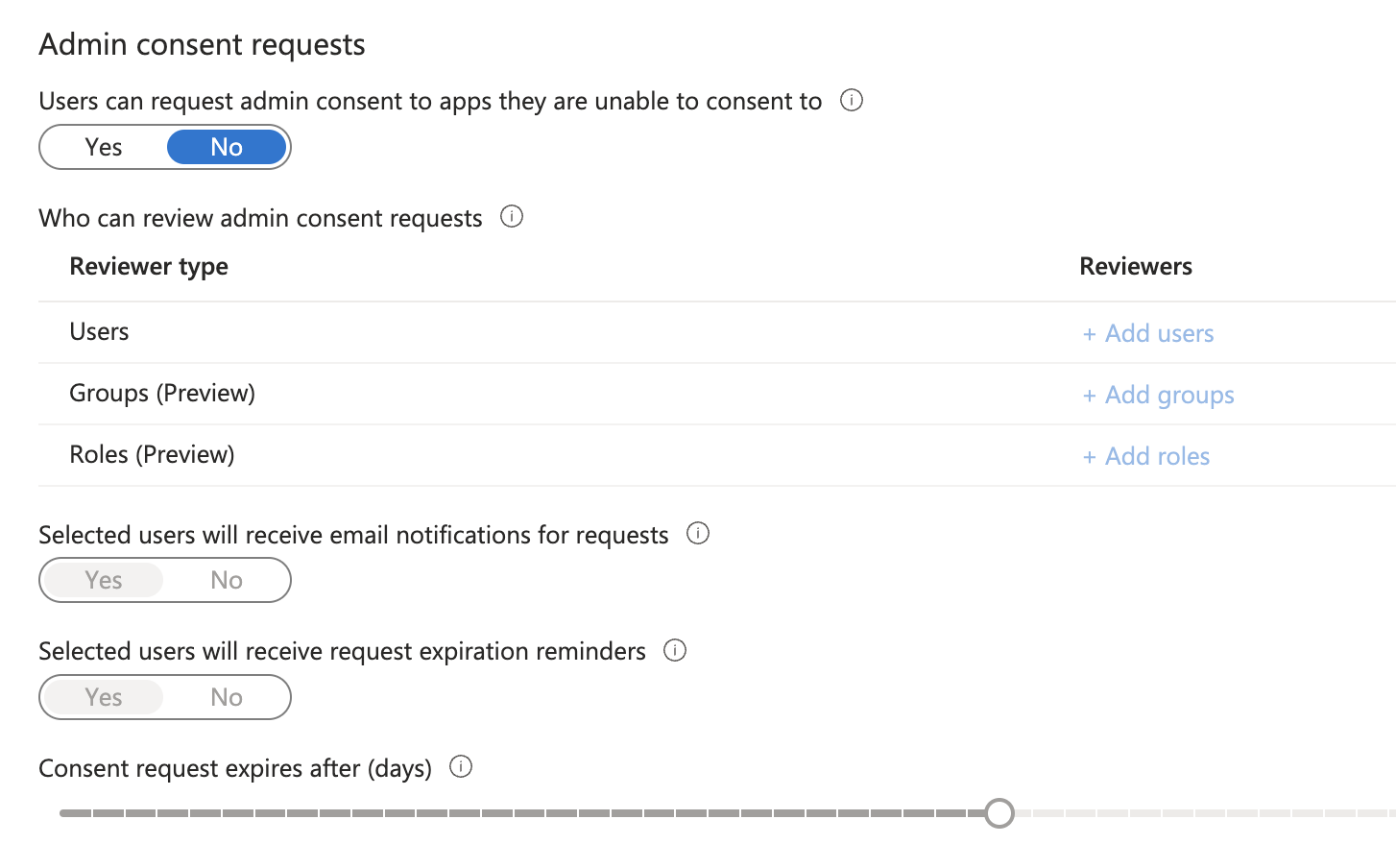
According to Configure the admin consent workflow - Microsoft Entra ID, the steps to access this page are:
To enable the admin consent workflow and choose reviewers:
Sign in to the Microsoft Entra admin center as a Global Administrator.
Browse to Identity > Applications > Enterprise applications > Consent and permissions > Admin consent settings.
Under Admin consent requests, select Yes for Users can request admin consent to apps they are unable to consent to .
Enabling this setting should allow users to request approval when trying to connect the mail handler and other apps:
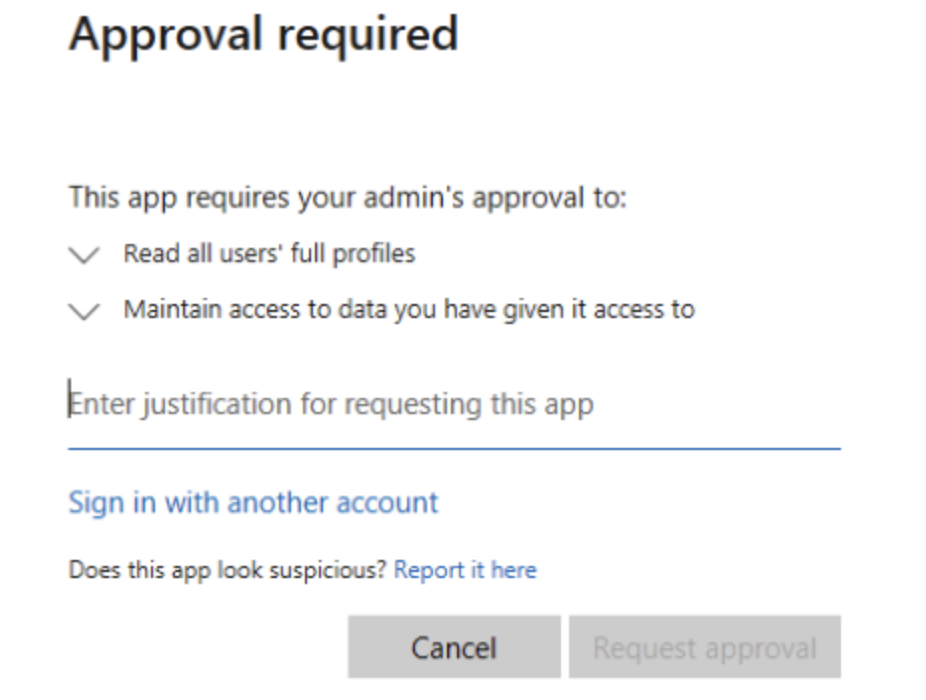
Then, the Microsoft AD admins can follow the Review and take action on admin consent requests - Microsoft Entra ID to approve the request.
Was this helpful?