Manage Portal-Only Accounts in JSM Cloud: Revoke Access & Delete Impact
Platform Notice: Cloud Only - This article only applies to Atlassian apps on the cloud platform.
Summary
Revoking access or deleting an account prevents portal-only customer accounts from accessing the help center. Understand the consequences of each option.
Solution
Where to revoke access or delete a portal-only customer account?
From your organization at admin.atlassian.com, if the Users and Groups options are under the Directory tab (like the example below), you have the improved user management experience. If you do not see this option in your portal, it may be due to certain site configurations or limitations in your user management experience. In such cases, ensure you are an organization admin or contact your organization admin for further assistance in accessing 'Portal-only customers.'
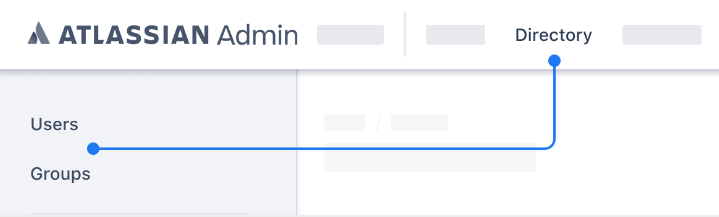
To access the required page with the improved user management experience, click Apps, choose the site name from the left menu under Sites, and select Portal-only customers under Jira Service Management.
Without the improved user management experience, access the page by selecting Jira Service Management under User management in the left menu.
When searching for portal-only accounts, note that the search functionality currently only supports email addresses, not names. Use precise email addresses for locating these accounts. For further troubleshooting, consult the 'Managing Portal-Only Accounts in Jira Service Management' resource or contact support if issues persist.
After reaching the Portal customers page, select the three-dotted icon in front of the corresponding user and select either Revoke access or Delete customer.
If you encounter difficulties, such as duplicate accounts or a missing delete option, ensure you are using the correct email address to locate the account. Only organization admins can delete portal-only accounts. If the issue persists, contact Atlassian Support for assistance.
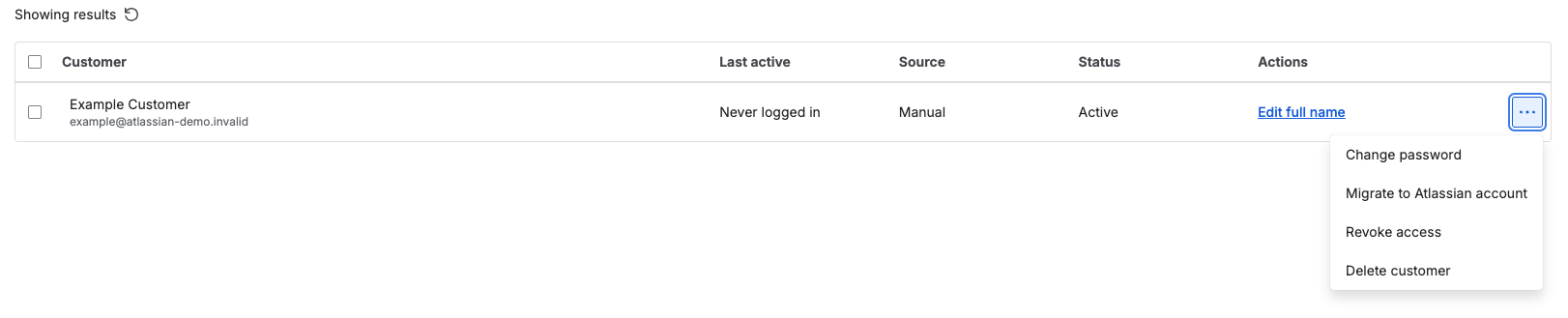
Revoke access consequences
The customer will be unable to access the instance's customer portal anymore.
The user won't be searchable and selectable in the user-picker fields.
The user's name will show up as Username (Deactivated) in the user-picker fields that were previously filled with their name.
The account will still be searchable in filters, however, only by its email address.
The customer's portal-only account can be reactivated at any time on the same page by clicking the three-dotted icon and selecting Grant access. All previous user references will be kept. Note: Reactivating users without granting product access ensures their account is active while avoiding license consumption.
Delete customer consequences
The customer account will be completely wiped out, hence losing access to the instance's customer portal. Note: Deleting an account follows a 14-day grace period during which the account cannot be re-invited or expedited for deletion.
The user won't be searchable and selectable in the user-picker fields.
The user's name will show up as Former user (Deactivated) in the user-picker fields that were previously filled with their name.
The account isn't searchable in any filter.
No reference is kept on the account's email address. If the same customer is re-invited to the instance in the future, it will be a brand new account without any correlation with the previously existing account. Note: Email updates for accounts must be managed through the user's identity provider, not directly within Jira.
Was this helpful?