How to link user stories from one Jira instance with the user stories of another Jira instance?
Platform Notice: Cloud Only - This article only applies to Atlassian apps on the cloud platform.
Summary
This Kb covers how user stories from one instance ex: https://ABCD.atlassian.net/ can be linked with user stories on another instance https://XYZ.atlassian.net
Environment
Jira Cloud
Solution
Issues can be linked between two Jira instances using Application Links by following below steps:
Note: Jira Admin access on both instances is required to perform the below steps.
Note: Linking a Jira instance with its sandbox is not supported.
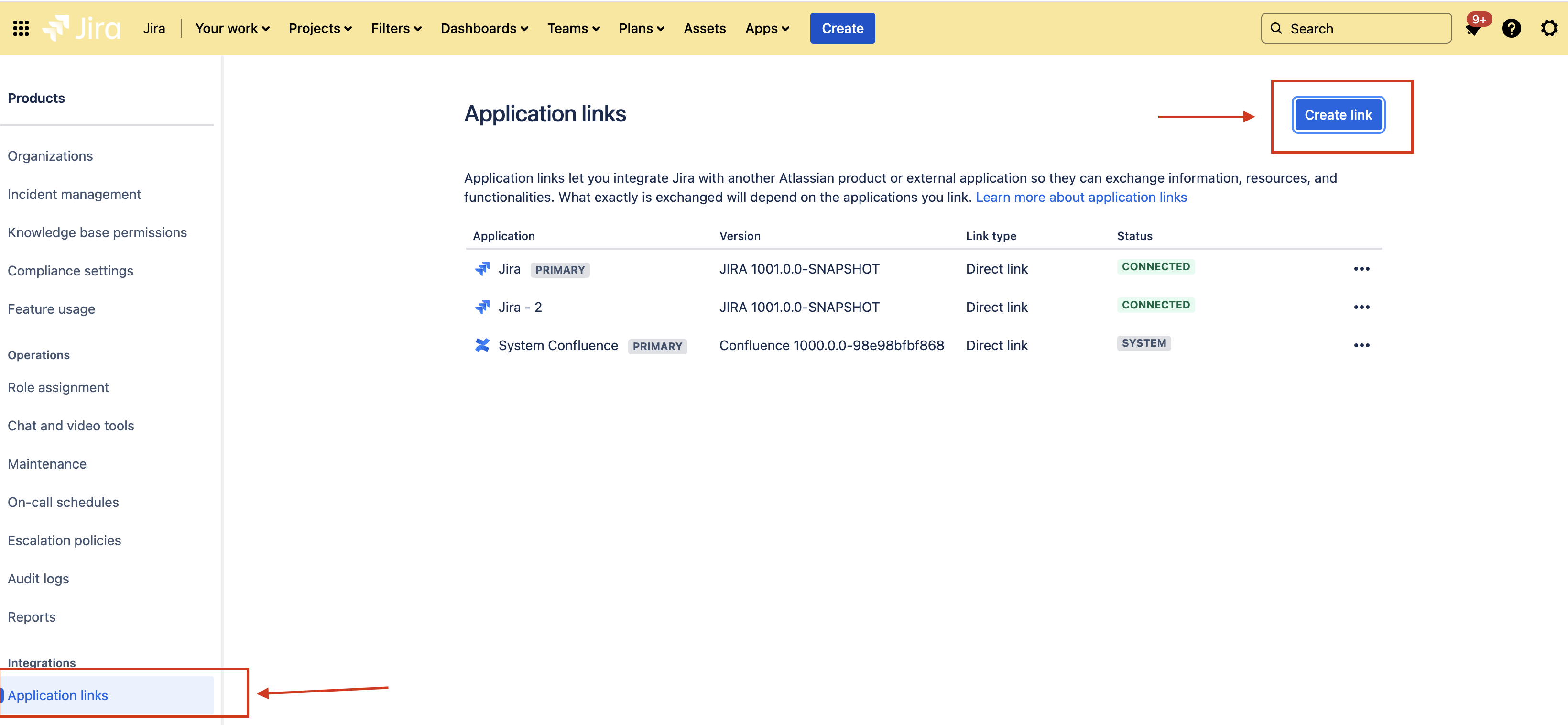
In the Source instance go to Jira Settings > Products.
Select Application Links from the left-hand menu.
Click on Create link
Copy and Paste the base URL for the destination instance.
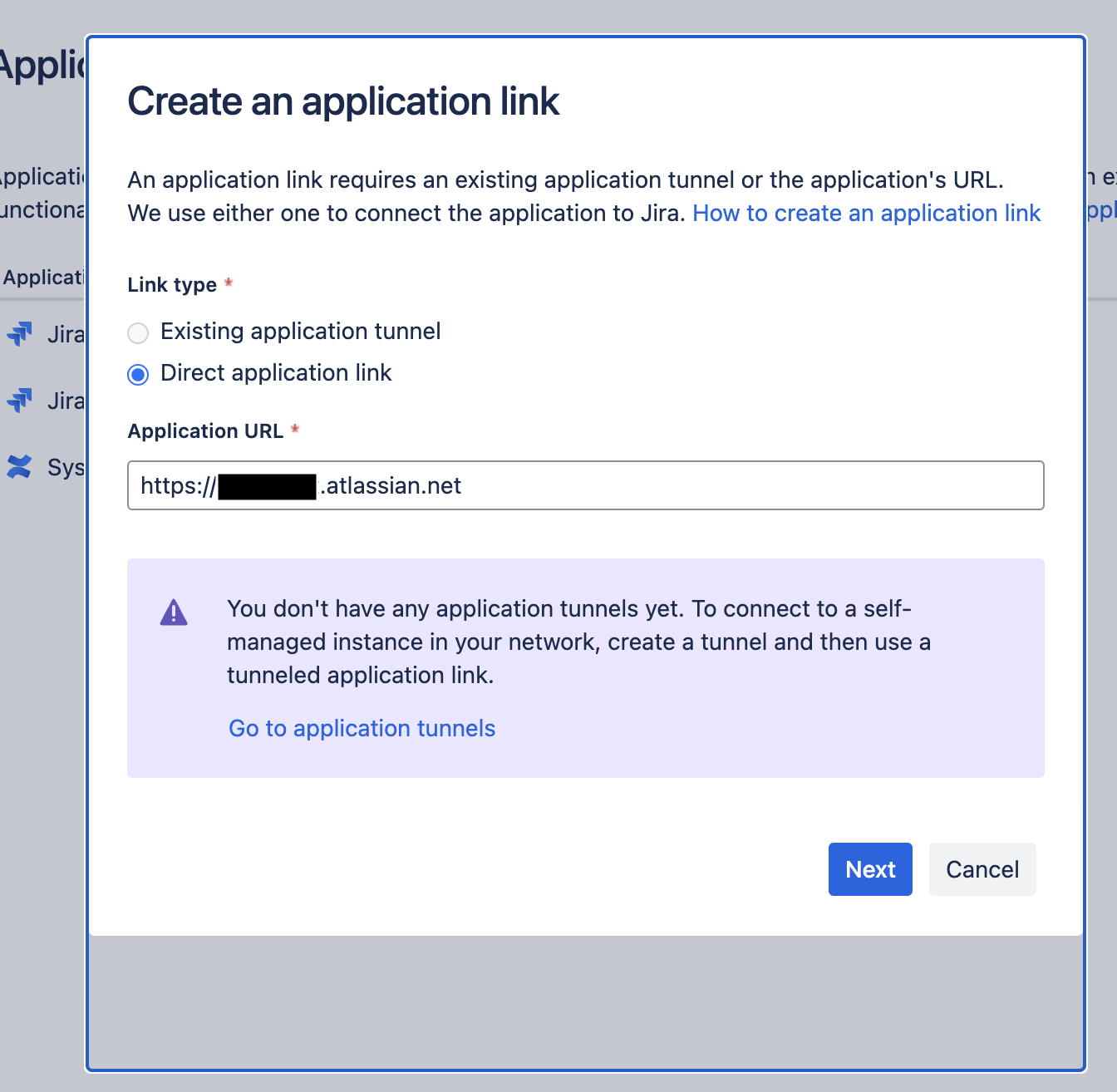
Press Next, and follow the instructions. Ensure reciprocal links are configured by repeating the process in the destination instance to link it back to the source instance.
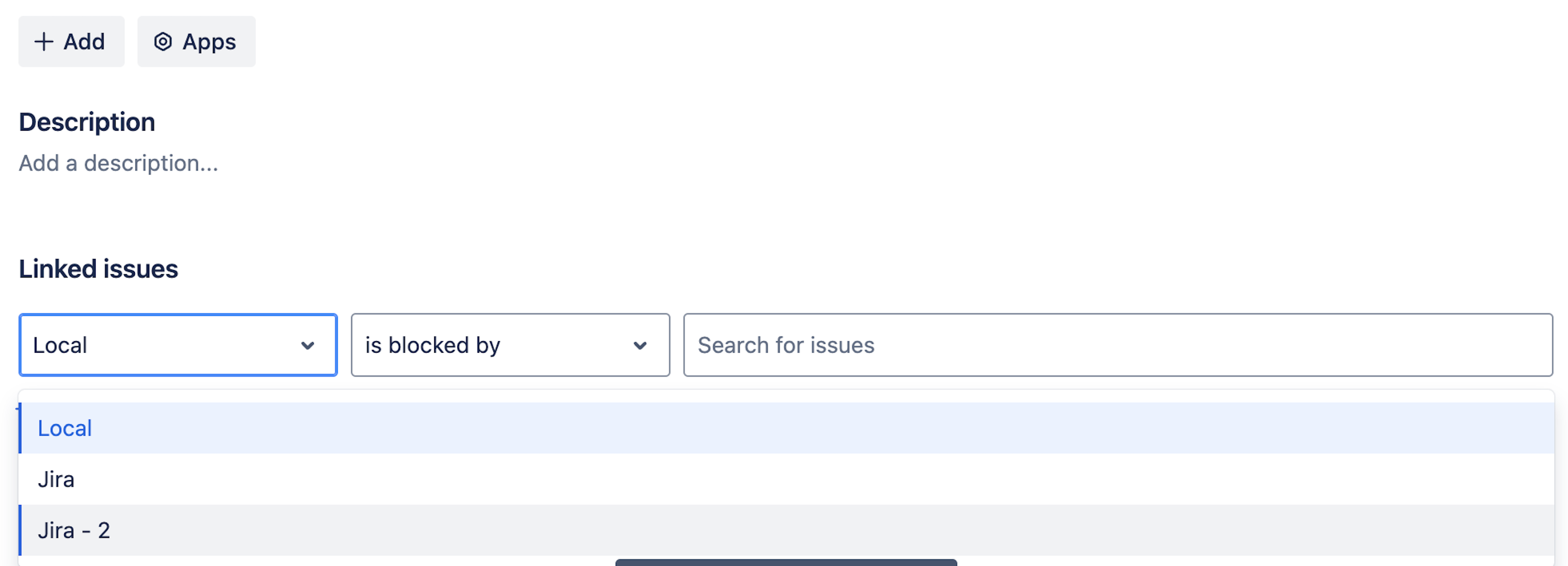
Once application link is created between the two instances, while creating issue links, you should now see the option to choose which instance the Issue is in - local, or otherwise(remote) as shown below. For advanced integrations like automating issue synchronization or specific field updates, you can explore Jira Automation using REST APIs or third-party tools.
Was this helpful?