How to install Jira Service Management in an existing Jira Data Center instance
Platform Notice: Data Center Only - This article only applies to Atlassian apps on the Data Center platform.
Note that this KB was created for the Data Center version of the product. Data Center KBs for non-Data-Center-specific features may also work for Server versions of the product, however they have not been tested. Support for Server* products ended on February 15th 2024. If you are running a Server product, you can visit the Atlassian Server end of support announcement to review your migration options.
*Except Fisheye and Crucible
Problem
After releasing Jira 7, Jira Software (formerly known as Jira Agile) and Jira Service Management are no longer installed as add-ons, but as applications. It’s confusing for some admins to install separate applications into an existing Jira instance.
Context
With Jira 7, we’ve divided Jira and its most popular add-ons into separate products/applications, creating Jira Core (the core Jira function), Jira Software (Core + Software features), and Jira Service Management (Core + Service Management features). As you can see, both Jira Software and Jira Service Management include Jira Core, as it's the platform on top of which they're built.
Once you install any of these applications (Jira Core, Jira Software, or Jira Service Management), you have the Jira platform in place, so you can add the remaining applications directly from the UI, without going through the whole installation again. In this scenario, adding them actually resembles adding an add-on, but that’s only because you previously installed the platform.
Diagnosis
If your Jira version is earlier than 7.x, you’ll actually be installing Jira Agile and Jira Service Management as add-ons. If it’s later than 7.x, you’ll add them to your Jira instance as applications.
Check your Jira version and the internet connection, and then follow one of the cases described below.
Case 1: Your instance is earlier version than Jira 7 and it has internet connection.
Case 2: Your instance is earlier version that Jira 7 and it does NOT have any internet connection.
Case 3: Your instance is Jira 7.0 or later and it has an internet connection.
Case 4: Your instance is Jira 7.0 or later and it does NOT have any internet connection.
"Jira 7.0 or later" includes Jira 8.x, and 9.x as well.
This article considers that the plugin upload is enabled.
Jira versions equal to or higher than9.4.17, 9.12.4, 9.14.0, or any version using UPM 6.1.9 or later, are shipped with the plugin/app upload blocked. For more details about it and to re-enable that feature please read the article How to re-enable plugin upload
Solution
Follow the instructions depending on your environment.
Case 1: Your instance is earlier version than Jira 7 and it has internet connection.
You can install Jira Agile from the navigation bar.
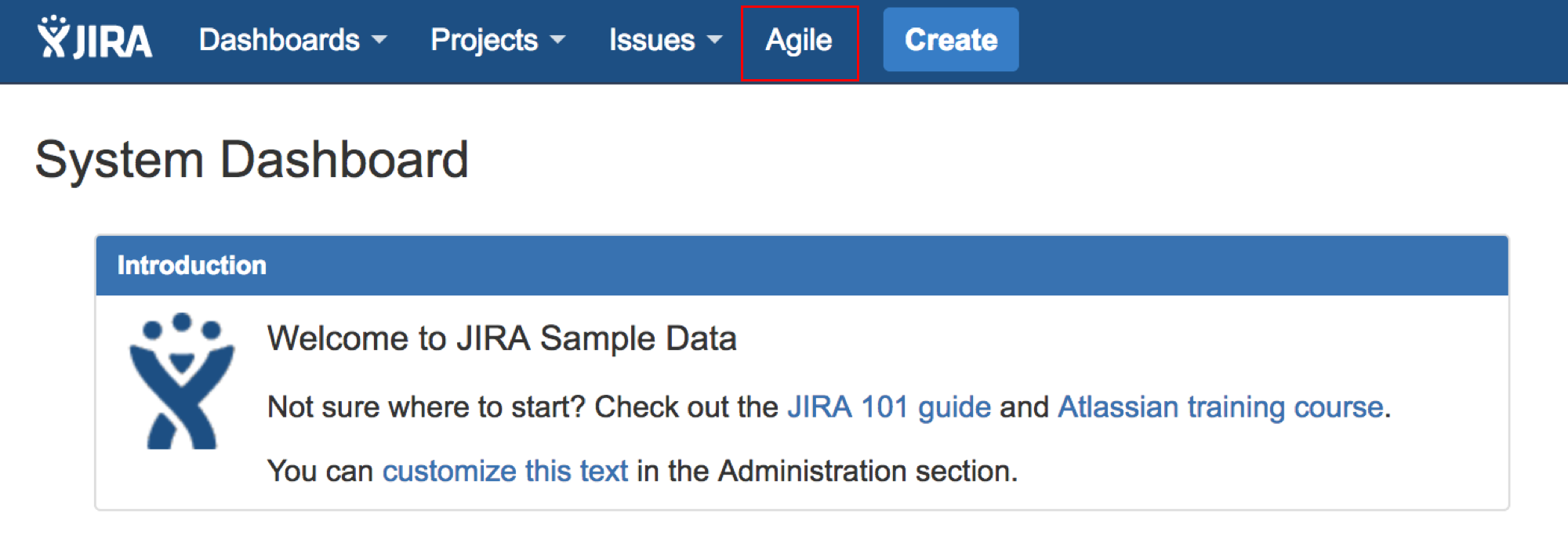
When it comes to Jira Service Management, please follow the instruction in Case 2.
Case 2: Your instance is earlier version that Jira 7, it does NOT have any internet connection.
Up to Jira 6.4.11, you can download Jira Agile add-on from here and Jira Service Management add-on from here.
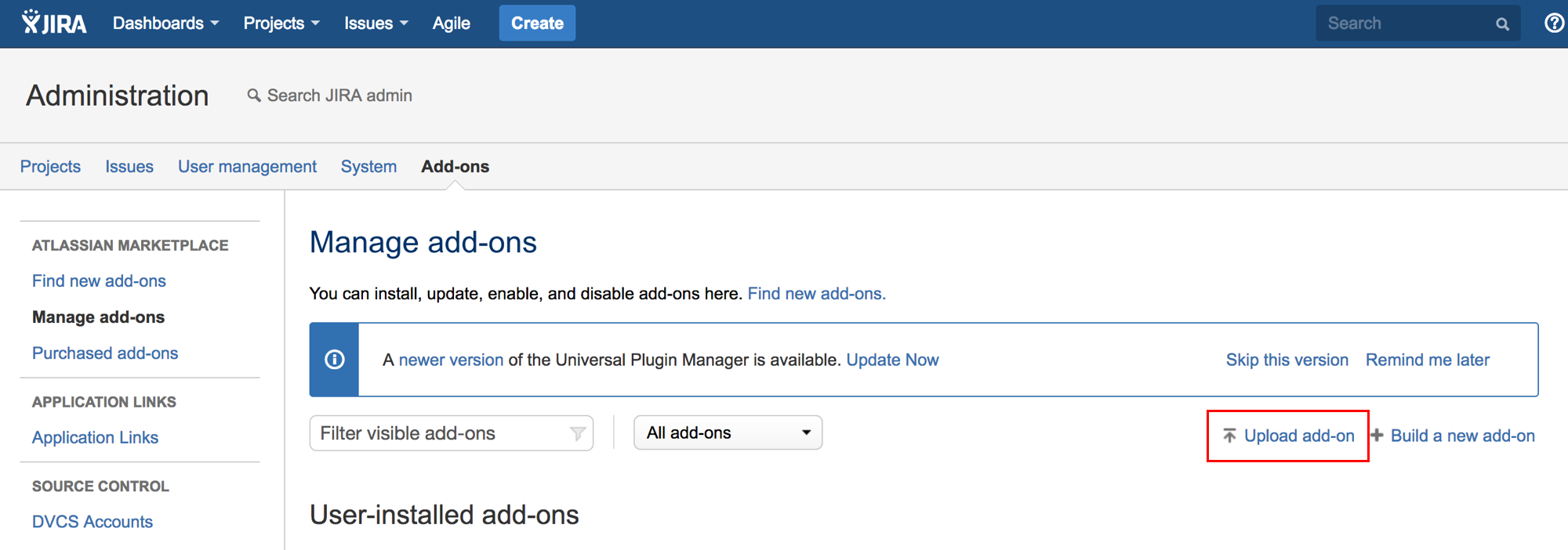
After downloading them, you can install them into the existing Jira instance from Upload add-on link in Administration > Add-ons > Manage add-ons page.
ℹ️ The link is found as "Upload app" in Jira newer versions.
Case 3: Your instance is Jira 7.x or later, it has internet connection.
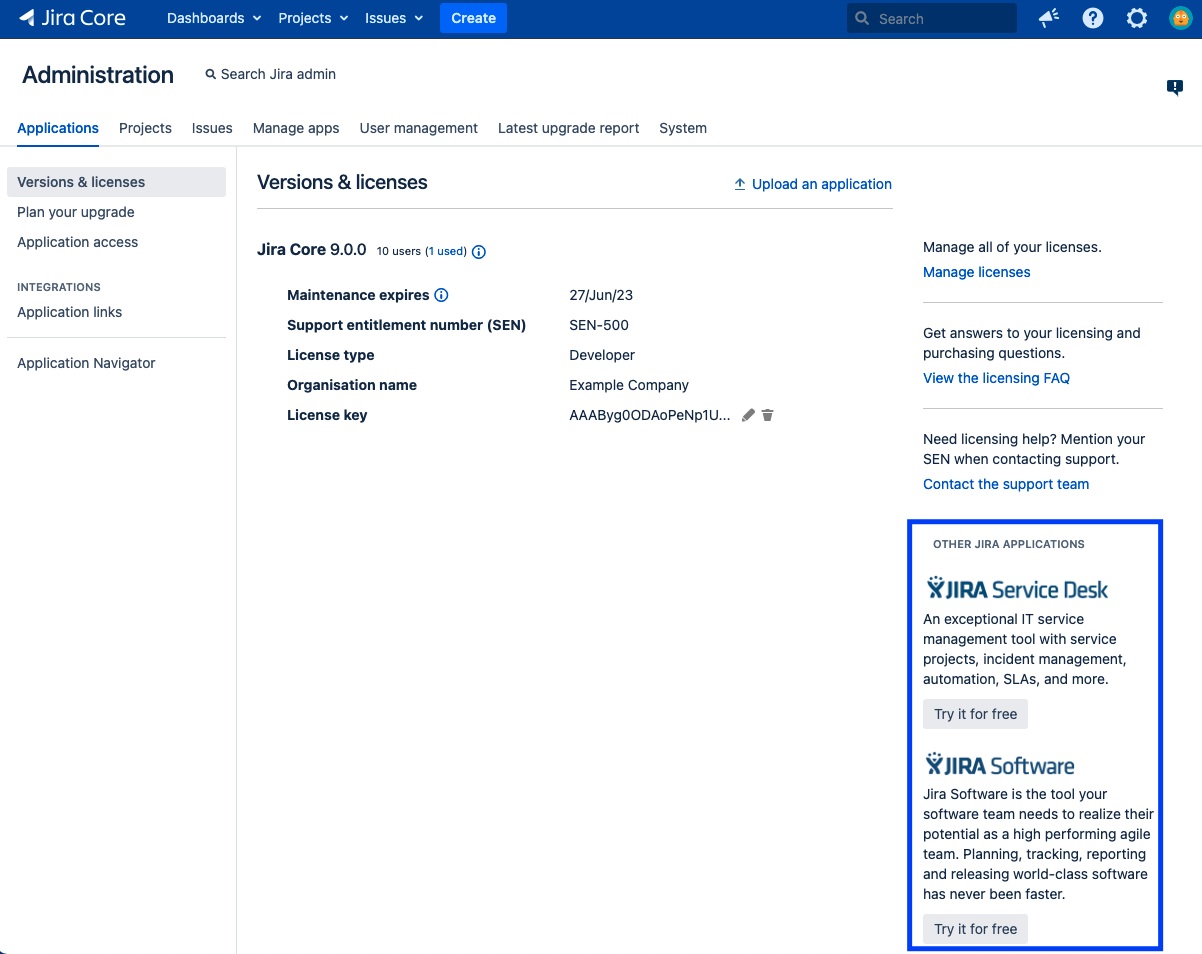
You can install the applications (Jira Software and Jira Service Management) from Try it for free link in Administration > Applications > Versions & licenses page.
Case 4: Your instance is Jira 7.x or later, and it does NOT have any internet connection.
You can download Jira Software from here and Jira Service Management from here.
After downloading them, you can install them into the existing Jira instance from Upload an application link in Administration > Applications > Versions & licenses page.
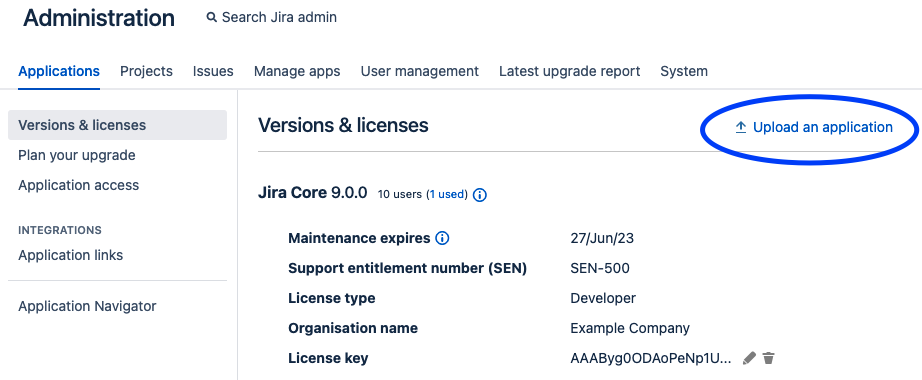
As legacy option, you can also install Jira Software and/or Jira Service Management into the existing Jira instance from Upload an application link in Administration > Manage apps page.
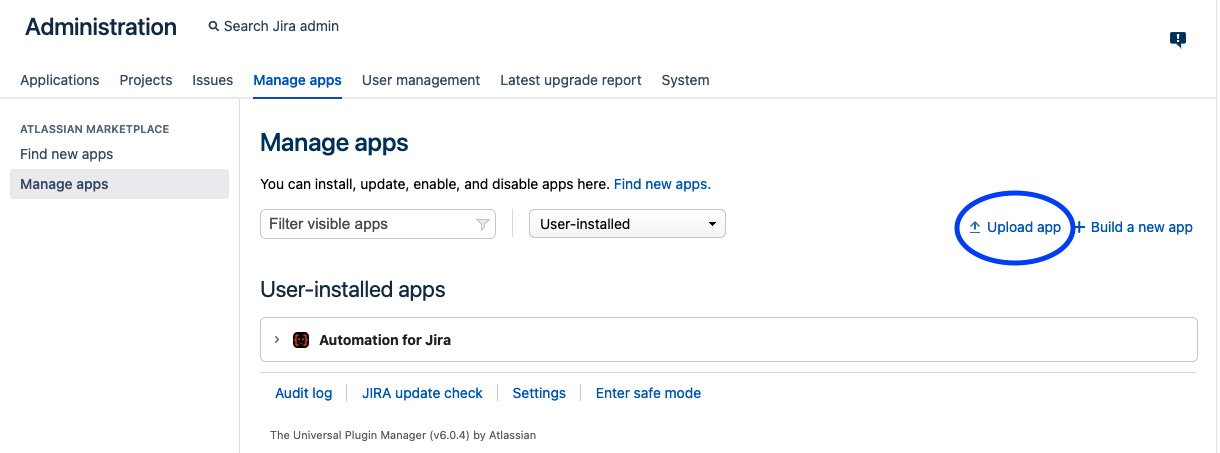
⚠️ The 'Upload app' link is disabled by default on Jira versions equal to or higher than 9.4.17, 9.12.4, 9.14.0, or any other Jira version with Universal Plugin Manager 6.1.9 or higher. To re-enable this upload feature in the UI, please use the steps in the KB article How to re-enable plugin upload in Jira Data Center.
Was this helpful?