Export over 10,000 work items in Jira Cloud
Platform Notice: Cloud Only - This article only applies to Atlassian apps on the cloud platform.
Summary
In Jira Cloud, exporting up to 10,000 work items using the asynchronous Export CSV feature from the Issue Navigator is supported.
Solution
Keep in mind
Exporting up to 10,000 work items can take time, and it may be slower when dealing with many fields. Here are some best practice tips:
Optimize your JQL query. Refine your JQL query to only include relevant work items. This helps keep the number of work items within the limit and avoids unnecessary data processing.
Select specific fields. In the issue navigator, you can choose to export the current fields or filter specific fields. To speed up the export and make your CSV file easier to manage, only choose the fields you need.
Avoid exporting all fields. Using the export options Export CSV (all fields) and Export Excel CSV (all fields) can significantly slow down the process and result in large files that are difficult to manage.
If you need to export more than the maximum number of work items, you can find two workarounds below.
Workaround 1 - Export work items by using Google Sheets or Microsoft Excel
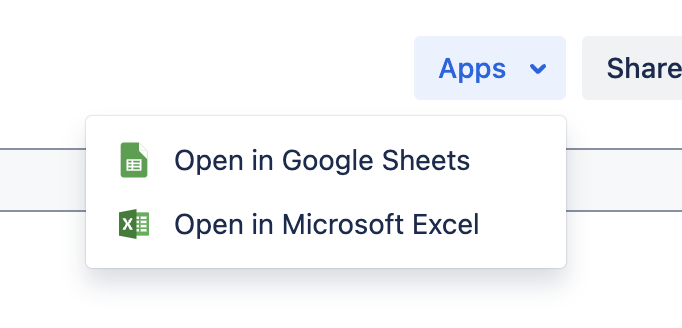
From the Issue Navigator (Filters > View all work items), after filtering the work items you want to export, you can click on Apps and select the desired option.
All the detailed steps can be found in the following article:
Workaround 2 - Export work items by adjusting URL parameters
This workaround is deprecated as of March 2026 - use Workaround 3 documented below instead.
Use the pager/start URL parameter to work around this issue by adjusting the index value to export issues from 1001 onwards. You will need to merge the results manually.
It is crucial that you do NOT combine the export of work items through the UI with batch exports using this workaround. Mixing these methods can lead to duplicate or missing work items in the export results. You should conduct all exports using this workaround exclusively. Each batch export has a maximum limit of 1,000 work items.
Once you land on the issue navigator page, right-click on the page and select 'Inspect'. This will open the developer tools.
Input the desired JQL and run a search to populate the links including the correct JQL in the Export dropdown menu.
Click the Export dropdown menu. In the developer tools,
Go to the 'Network' tab, select 'Fetch/XHR'
Enter views in the filter.
Next, refresh the page and select the Export dropdown menu.
Copy the URL from the link field of the corresponding export option in the ‘Preview' tab. Here’s an example:
https://<instance name>/sr/jira.issueviews:searchrequest-csv-current-fields/temp/SearchRequest.xls?jqlQuery=&tempMax=1000
or
 https://<instance-name>//sr/jira.issueviews:searchrequest-csv-current-fields/<filterId>/SearchRequest-<filterId>.csv
Export the first thousand work items by visiting this URL in your browser and saving the file when prompted.
If you are prompted with the "XSRF Security Token Missing" screen then click the "Retry Operation" button
Now, to export the next thousand work items, append &pager/start=1000 to the end of the URL string to instruct JIRA to export from index 1001 and above. Example:
https://<instance name>/sr/jira.issueviews:searchrequest-csv-current-fields/temp/SearchRequest.xls?jqlQuery=&tempMax=1000&pager/start=1000
Visit this URL in your browser and save the file when prompted. For the subsequent 1000 issues, adjust the index value accordingly, for example &pager/start=2000 (and so forth).
If you are prompted with the "XSRF Security Token Missing" screen then click the "Retry Operation" button
6. Open the exported CSV files and manually consolidate them if necessary.
Workaround 3 - Export work items by splitting results with JQL
Use JQL to divide your search results into smaller batches of fewer than 10,000 work items each. Export each batch separately using the standard CSV export in the Issue Navigator, then manually merge the resulting files.
How it works
Identify a JQL field that lets you split your full result set into smaller groups. Common approaches include splitting by:
Project — if your query spans multiple projects
Date range — using
created,updated, orresolvedwith date rangesIssue type — if you have a mix of types (e.g., Bug, Story, Task)
Status — such as
Done,In Progress,To Do
Each batch query should return fewer than 10,000 work items. You can verify the count shown in the Issue Navigator before exporting. Ensure your approach will not result in work items appearing multiple times across the smaller queries.
Steps
In the Issue Navigator (Filters > View all work items), enter your original JQL query and note the total number of results.
Choose a field to split on. For example, if your original query is:
project = MYPROJECT ORDER BY created DESCAnd it returns 25,000 work items, you could split by date range:
Batch 1 (5000 items):
project = MYPROJECT AND created >= "2026-01-01" AND created < "2026-07-01" ORDER BY created DESCBatch 2 (10000 items):
project = MYPROJECT AND created >= "2025-06-01" AND created < "2026-01-01" ORDER BY created DESCBatch 3 (10000 items):
project = MYPROJECT AND created < "2025-06-01" ORDER BY created DESC
Run each batch query in the Issue Navigator and confirm that each returns fewer than 10,000 results. If a batch still exceeds 10,000, narrow the date range or add additional filter criteria to split it further.
For each batch, click Export and select your preferred CSV export option. Keep in mind the Export CSV (all fields) may take significantly longer.
Open the exported CSV files and manually consolidate them into a single file.
Tips for choosing how to split
Date ranges are the most flexible option because you can adjust the size of each range until every batch is under 10,000 results.
createddate is generally the most predictable field to split on because it doesn't change after the work item is created, making it easy to create non-overlapping batches.If your original query already filters by project, consider splitting on a different field such as
issuetype,status, orassignee.Always verify that the total count across all your batches matches the total from your original query to ensure no work items were missed or duplicated.
Was this helpful?