Resolve Email Request Failures due to Rate Limit in JSM Cloud
Platform Notice: Cloud Only - This article only applies to Atlassian apps on the cloud platform.
Summary
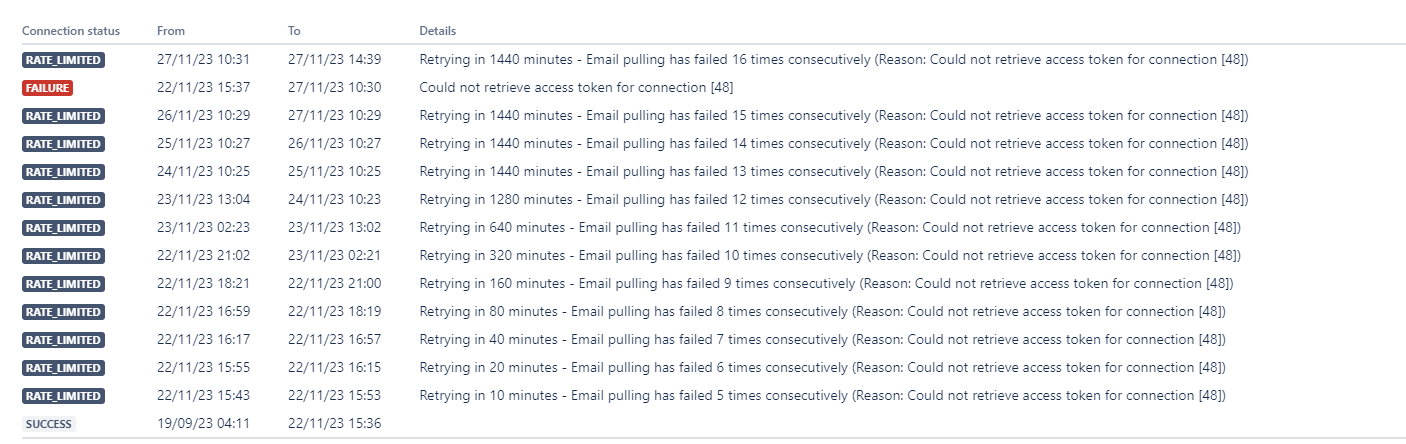
If your custom email isn't processing, check the email connection. The connectivity log may show "Rate Limited" statuses.
Diagnosis
Go to Project Settings > Channels & self service > Email Request.
Click View Logs for the affected email.
Click Connectivity Log and it will show as per the screenshot:
Cause
The email processor will try to pull messages from your mail server every minute, so even though it fails, it will likely connect on the next try. When the connection between Jira and the mail server fails many times, Jira no longer tries for a certain amount of time, and this time increases if it fails again. Hence you notice multiple error logs mentioning "Retrying in xxx minutes".
This issue typically arises when OAuth fails to retrieve the appropriate access token necessary for integrating the service management project with a custom email account such as Microsoft or Google.
If you see error messages like '403 Forbidden' or 'Could not retrieve access token,' it may indicate insufficient permissions or an expired OAuth token. Ensure the OAuth connection setup grants all required permissions for read, compose, and send email.
Solution
Get a screenshot of the connectivity logs. This will be handy if you want to track when the email starts failing.
Click on the Action menu () and select the Remove option. Note: If your custom mail handler is configured as the Reply-to address, you will need to temporarily change this to the default Atlassian email address or another valid mail handler before the Remove option is available. Revert to your custom email address after troubleshooting is complete.
To reconnect the account, click the Add external email button.
Then, click the "Microsoft" or "Google" symbol to reconnect it using OAuth. Before reconnecting, ensure that the email account is granted the necessary permissions to allow Jira access and check that no blocking settings, like rate-limiting or domain mismatches, are configured on your email provider. Note: For Microsoft 365 accounts, ensure the connecting user has 'Full Access' permissions to the mailbox, a valid mailbox license, and no device-bound OAuth tokens that could disrupt communication. Check your email provider's settings for any such configurations.
Once reconnecting, send a test email to verify functionality and monitor the email connectivity and processing logs. If logs show persistent errors, review permissions and configurations, and consult your email provider if required.
When you successfully reconnect, emails that were previously received and in unread status will not be processed automatically. To address this, move all unprocessed emails to a temporary folder before reconnection. After reconnection, move these emails back to the inbox so that Jira can process them correctly. If you encounter further issues, please contact support along with a timestamp from when the failure began so we can assist further.
Was this helpful?