Detailed steps to configure OAuth 2.0 integration with Microsoft Azure
Platform Notice: Data Center Only - This article only applies to Atlassian apps on the Data Center platform.
Note that this KB was created for the Data Center version of the product. Data Center KBs for non-Data-Center-specific features may also work for Server versions of the product, however they have not been tested. Support for Server* products ended on February 15th 2024. If you are running a Server product, you can visit the Atlassian Server end of support announcement to review your migration options.
*Except Fisheye and Crucible
Summary
This guide aims to provide a more detailed overview of every step required to integrate Jira using OAuth2.0 authentication with Microsoft Azure.
It shows screenshots of the location of each piece of information we need to successfully complete the integration.
Solution
Creating the OAuth 2.0 application link in Jira:
First, start creating an application link integration.
Important: Ensure that your network environment and SSL configuration support secure connections to Microsoft services. Lack of connectivity or valid SSL certificates may lead to authorization and functionality failures.
For Jira 8.22+/4.22+:
Go to Jira administration > Applications, and then Application links.
NOTE: Select External application and Outgoing, then Microsoft as the provider if you're on a "non-GCC" or a "normal GCC plan, or choose Custom if you're on a DoD or GCC-High plan. (More details will follow in the next steps)
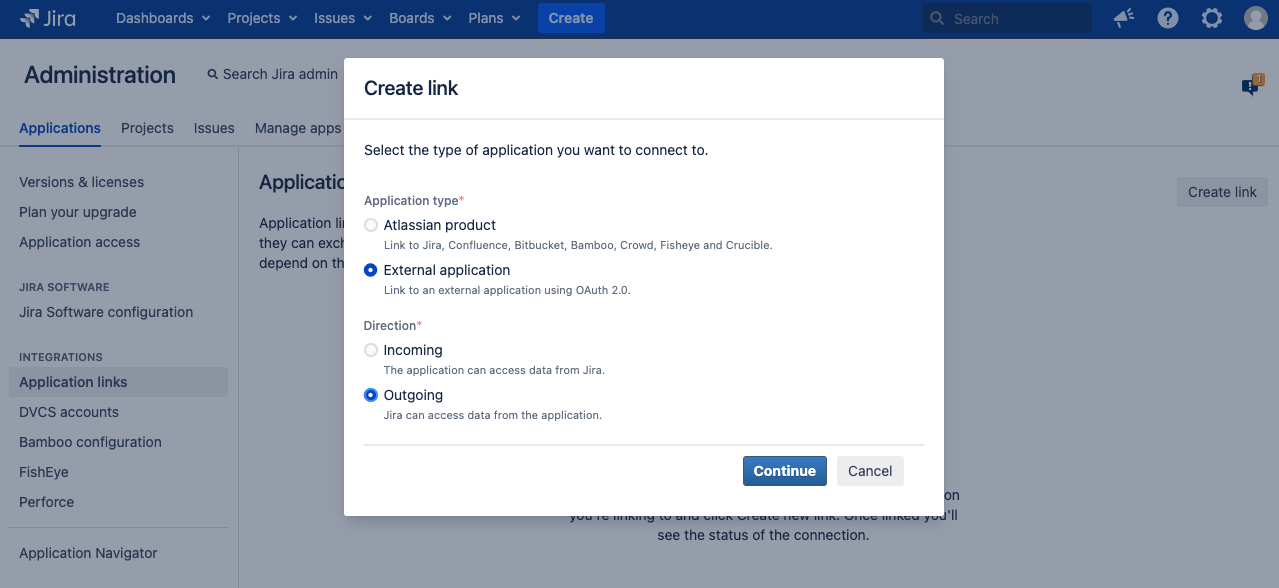
For older Jira versions:
Go to Jira administration > System > OAuth 2.0
NOTE: Add New integration and Select Microsoft as the provider for default settings:
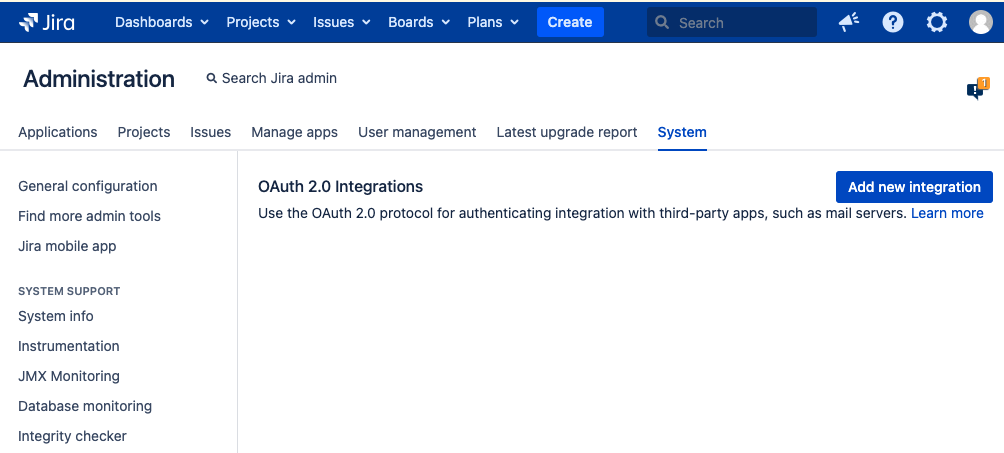
Initial configuration on the Jira side:
1. On the bottom section, copy the Redirect URL from the Jira OAuth2.0 integration that you created.

Now to the Azure side:
2. Go to "https://portal.azure.com/"
3. Click on App registrations
4. Click on New registration
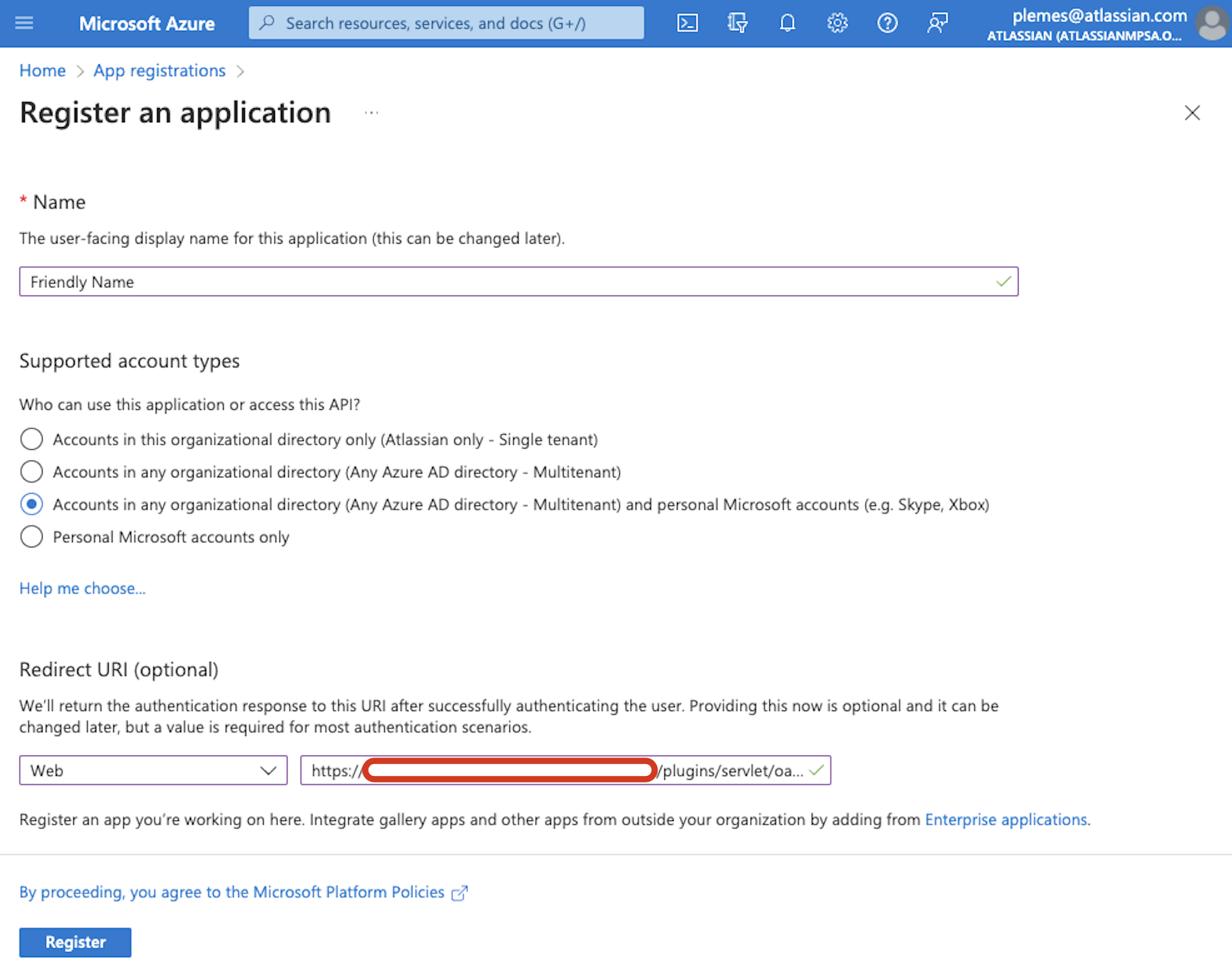
5. Let's pick up a friendly name so it will be easier to identify
6. Under the "Supported account types" section, let's choose "Accounts in any organizational directory (Any Azure AD directory - Multitenant) and personal Microsoft accounts (e.g. Skype, Xbox)"
NOTE: In this step is important to choose the "and personal Microsoft accounts", as this uses the common endpoint.
7. Under the "Redirect URI" section, let's pick up Web and insert the URL from the step #1 above
8. Click on Register
9. Click on API permissions
10. Click on Add a permission
11. Click on Microsoft Graph
12. Select Delegated permissions
13. Search and select the following permissions, depending on what protocols you are going to use:
If you're using the regular API:
Required API Permissions for IMAP and POP
offline_access
IMAP.AccessAsUser.All
POP.AccessAsUser.All
Or these if you're using Microsoft Graph API:
Required API Permissions for Microsoft Graph API (valid for JSM 5.8+ only)
Mail.ReadWrite
Mail.ReadWrite.Shared (for shared mailboxes only)
offline_access
User-Mail.ReadWrite.All
User.Read
NOTE: Check with Microsoft which one you should be using.
14. Click on Add permissions
15. Click on Grant admin consent... if this option is not available, there must be a message saying that your grant is already given above this table.

16. Click on Certificates & secrets
17. Click on New client secret
18. Choose a description and expiration date
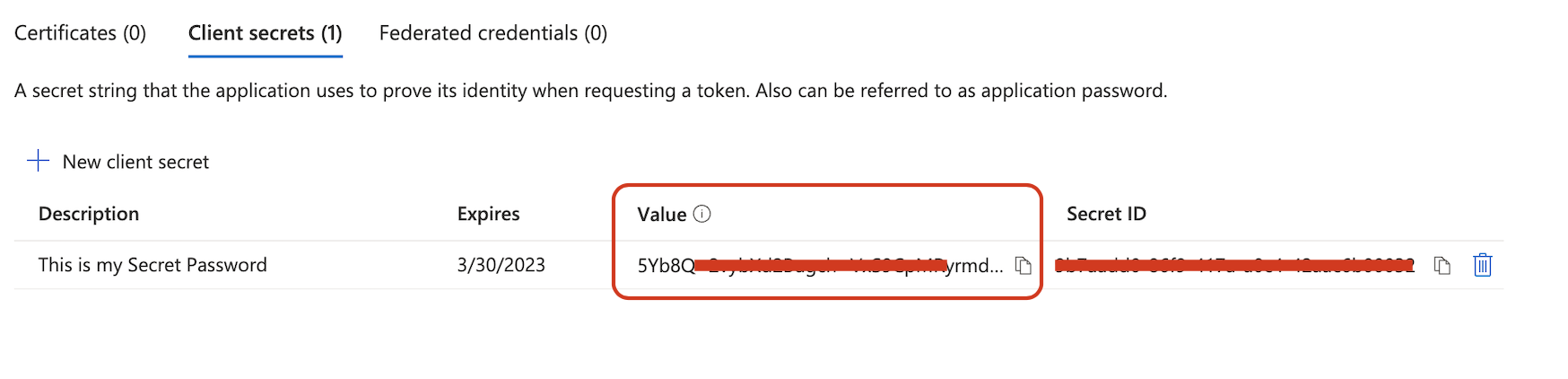
19. Copy the Value generated, as this "Value" will be used as the "Client secret" in Jira to complete the configuration.
Known errors:
The "Value" is the "Client secret" we need to use on Jira. If you use the "Secret ID" as the "Client secret" on the Jira OAuth settings it will cause an authentication error.
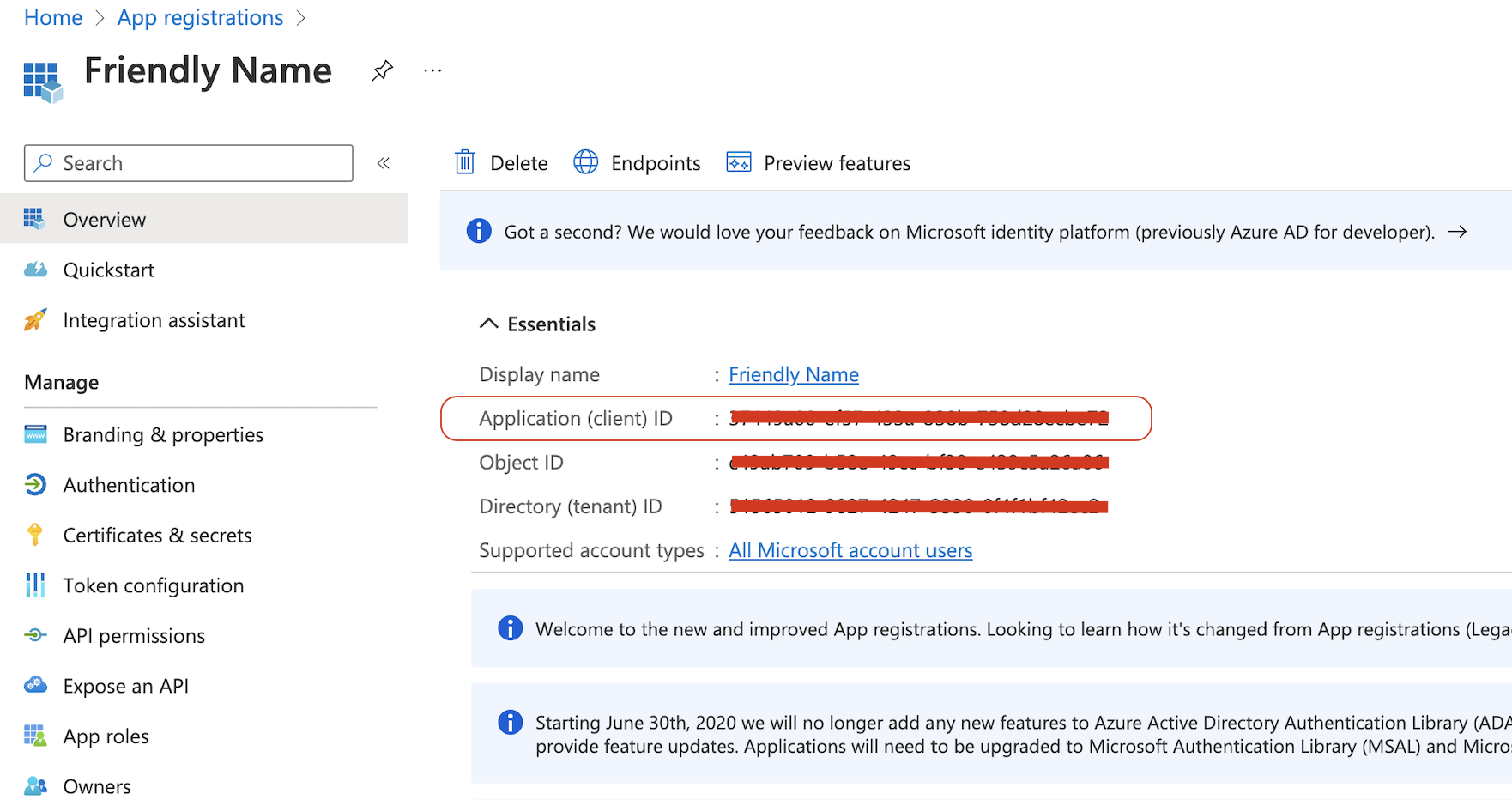
20. Click on Overview
21. Take note of the Application (client) ID, we'll use this as the "Client ID" at the Jira side config.
Extra step:
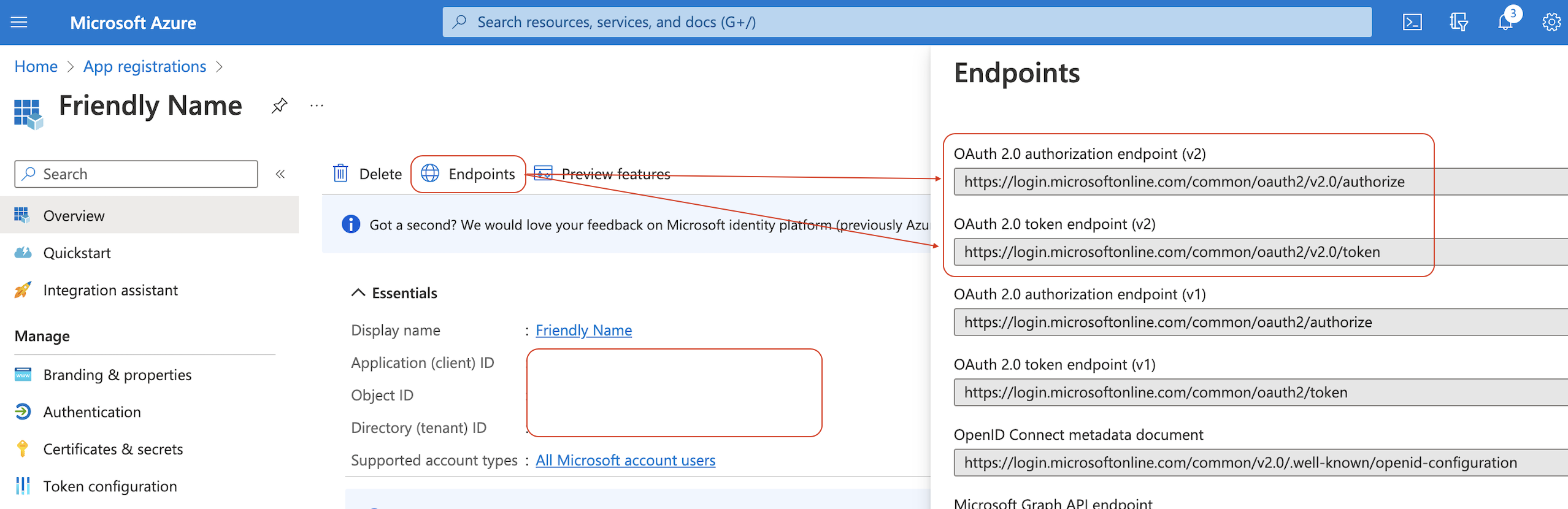
On the Overview page, there's a link on the top called "endpoints", check if your "OAuth 2.0 authorization endpoint (v2)" and "OAuth 2.0 token endpoint (v2)" match the same ones defaulted on the Jira side.
Correct them on the Jira side to the Endpoints Azure is expecting if needed as this is the root cause of several "single-tenant" and "multi-tenant" issues.
Jira side part 2:
22. Let's go back to Jira and complete the configuration by inserting the following details:
Client ID = "Application (client) ID" from step #21 above.
Client secret = "Value" from step #19 above.
23. For the Scopes, manually copy and paste individually these URLs, depending on what protocols you are going to use and on your Azure account type:
For non-GCC, and "normal" Government Community Cloud (GCC) plans, which are the most commons type of plans, use the following scopes:
https://outlook.office.com/IMAP.AccessAsUser.All
https://outlook.office.com/POP.AccessAsUser.All
offline_access
For US Government DoD or US Government GCC High plans, use the following scopes:
https://outlook.office365.us/IMAP.AccessAsUser.All
https://outlook.office365.us/POP.AccessAsUser.All
offline_access
Known errors:
Using GCC High scopes with non-GCC or "normal" GCC accounts will cause connection issues.
Read more for similar issues caused by wrong scope
For more details on GCC High accounts, check this even more detailed guide:
For Microsoft Graph API, use these:
Scopes for Microsoft Graph API (valid for Jira 9.9+ or Jira Service Management 5.8+ only):
https://graph.microsoft.com/Mail.ReadWrite
https://graph.microsoft.com/offline_access
https://graph.microsoft.com/Mail.ReadWrite.Shared (for shared mailboxes only)
Please note that shared mailboxes must have 'Full Access' permissions configured and be fully migrated to Microsoft Azure Cloud. Hybrid environments or on-premise mail servers are not supported with Graph API.
Microsoft Graph API
Ensure your mailbox permissions and protocols (such as POP) are correctly configured and supported across your Jira version. For more details of the use and configuration of the Microsoft Graph API, check these pages: Configuring an incoming mail server with POP, IMAP, or Microsoft Graph API Setting up an email channel with the Microsoft Graph API protocol. For more details of the use and configuration of the Microsoft Graph API, check these pages:
Configuring an incoming mail server with POP, IMAP, or Microsoft Graph API
Setting up an email channel with the Microsoft Graph API protocol
24. Click on Save
25. Test the connection
You'll be redirected to the authentication page.
If the Auth is successful, you'll return to Jira with a confirmation message that the integration worked!
What if the authorization fails?
Ensure that all Jira platform components (Core, Software, and JSM) are on the same version using the Jira Data Center installer, as mismatched versions may cause compatibility issues with features like email channel integration. If the versions match but the issue persists, we'll most likely have a network issue that is preventing this Authorization from being fully completed. To address such problems:
Firewall Restrictions: Ensure your firewall rules allow access to key Microsoft service endpoints, including `office.com`, `microsoft.com`, and `o365.com`.
SSL Certificate Issues: Confirm that Jira is configured with a valid SSL certificate that supports secure communication with Microsoft services. If you encounter an error like `unable to find valid certification path to requested target`, review your certificate configuration.
If the root cause requires deeper debugging after verifying these aspects, please raise a ticket on our Atlassian Support Channel.
Known issues and errors:
AADSTS7000215: Invalid client secret is provided
On the atlassian-jira.log file we have this: AADSTS7000215
2022-xx-xx 20:34:03,014+0000 http-nio-8080-exec-253 ERROR username 1234x5727202x3 1i8mi5a 0.0.0.0.0.0.0.0 /rest/oauth2-client/latest/config/flow/xxxxxxxxx-xxxx-xxxx-xxxx-xxxxxxxxxxx [c.a.o.c.rest.resource.ClientConfigurationResource] Error occurred while authorizing an integration. The error message is: AADSTS7000215: Invalid client secret provided. Ensure the secret being sent in the request is the client secret value, not the client secret ID, for a secret added to app 'xxxxxxxxx-xxxx-xxxx-xxxx-xxxxxxxxxxx'.
    Trace ID: xxxxxxxxx-xxxx-xxxx-xxxx-xxxxxxxxxxx
    Correlation ID: xxxxxxxxx-xxxx-xxxx-xxxx-xxxxxxxxxxx
    Timestamp: 2022-xx-xx 20:33:57Z
This might indicate that the secret value / ID was wrongly copied, as step #19 states.
Or, create a new secret to use with this Jira application link.
Additionally, errors like 'ErrorItemNotFound' or 'Default folder Inbox not found' may occur when mailbox permissions are incorrect or the folder structure/setup doesn’t match Microsoft Graph API requirements. Verify that correct permissions, scopes, and shared mailbox settings are configured.
If you found errors or need a missing information, be sure to let us know commenting or raising a Support request!
Was this helpful?