Old vs new navigation in Confluence
Confluence’s navigation has been updated to make it simpler and more consistent across Atlassian products. If you’re used to the old navigation, this table will help you get up to speed by showing exactly what’s changed.
| Old navigation | New navigation |
|---|---|---|
Top to side | Main navigation items like Home, Recent, and Spaces were located in the top navigation. |  Main navigation items like Home, Recent, and Spaces are located in the sidebar, which you can customize to show only what’s important to you. |
スペース | Spaces were accessed from the dropdown menu in the top navigation. | 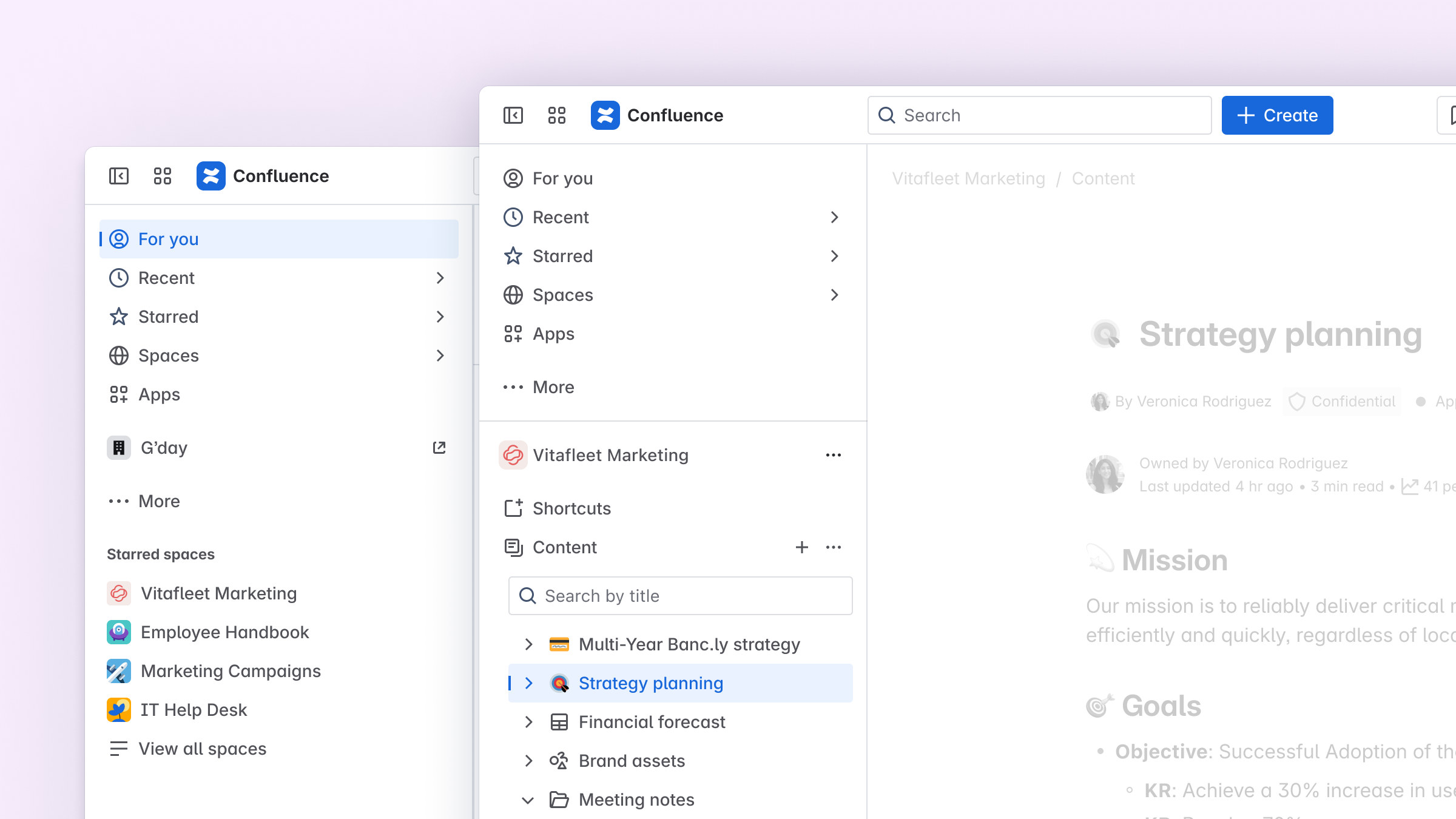 Spaces are always visible from the sidebar, making it easier to switch between them. |
[スペース設定] で更新できます | Space settings were found in the sidebar. | 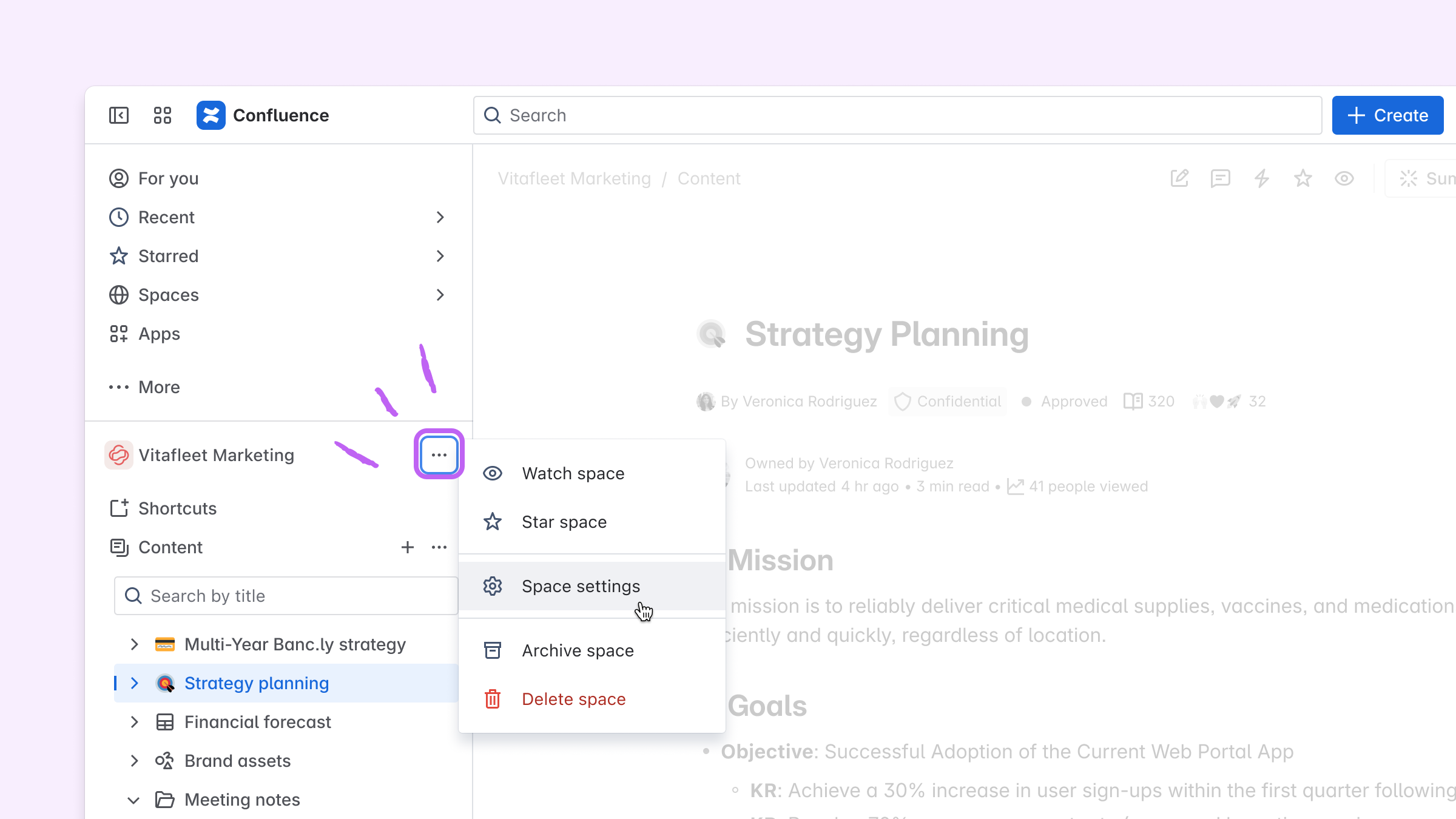 Space settings can now be found by finding the space’s name in the sidebar, and then selecting More actions (•••). |
Expand or collapse sidebar | Expanding or collapsing was located at the top right edge of the sidebar. | 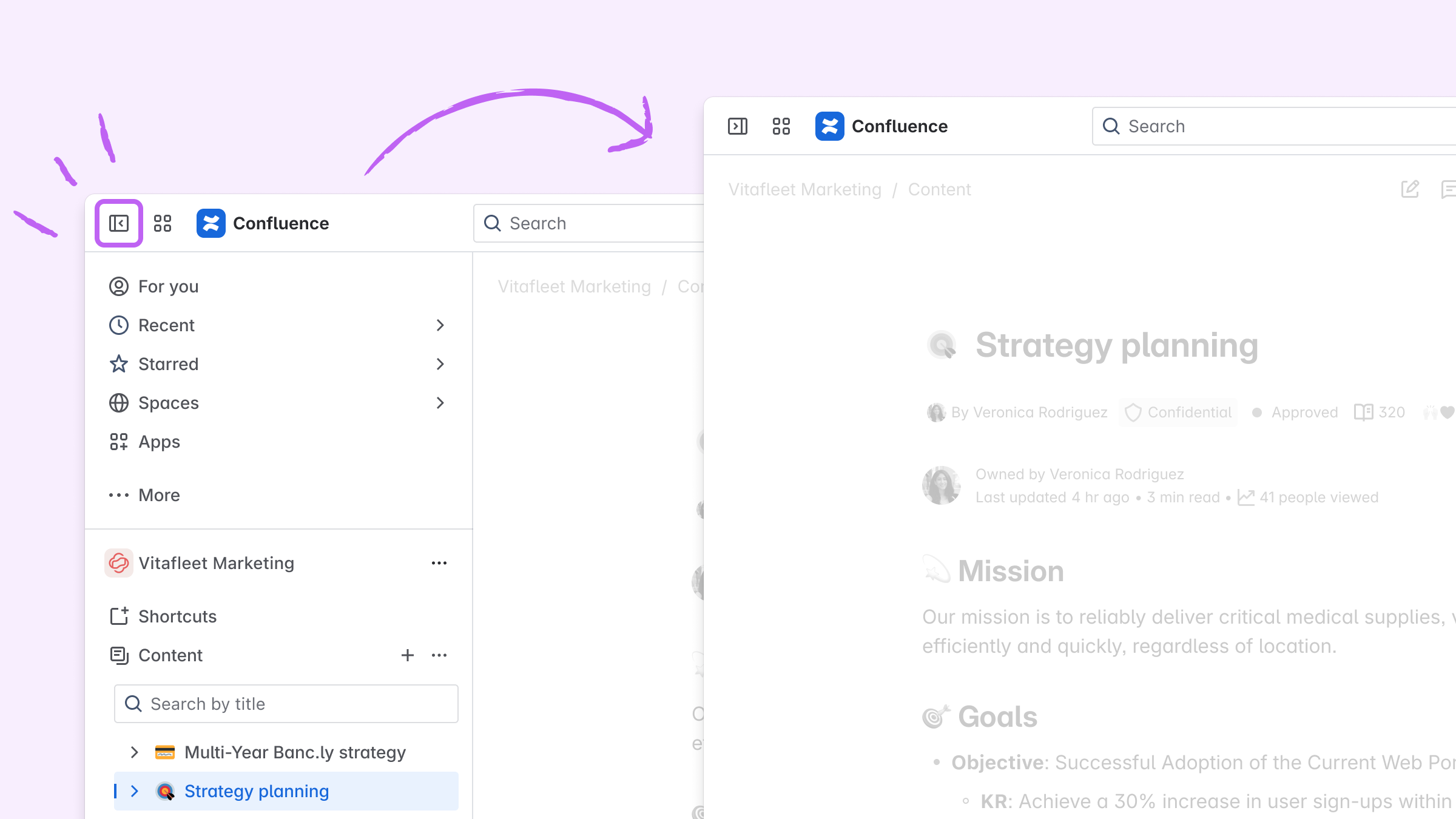 Expanding or collapsing is now located at the top left corner of the sidebar. |
この内容はお役に立ちましたか?