How to change the issue creation date using a database update
プラットフォームについて: Data Center のみ。 - This article only applies to Atlassian apps on the Data Center プラットフォーム。
この KB は Data Center バージョンの製品用に作成されています。Data Center 固有ではない機能の Data Center KB は、製品のサーバー バージョンでも動作する可能性はありますが、テストは行われていません。 Server* 製品のサポートは 2024 年 2 月 15 日に終了しました。Server 製品を実行している場合は、 アトラシアン Server サポート終了 のお知らせにアクセスして、移行オプションを確認してください。
*Fisheye および Crucible は除く
要約
The content on this page relates to database updates which are not supported by our Atlassian Support Offerings. Consequently, Atlassian can not guarantee providing any support for it. Please be aware that this material is provided for your information only and using it is done so at your own risk.
Sometimes the creation date of an issue may need to be modified after the issue has been created. This article covers how to do this using a database update.
ソリューション
ソリューション
Database updates are not supported and can result in integrity issues. We recommend to use the CSV import functionality as described in How to change the issue creation date using CSV import instead.
Preparation:
Create a Date Picker Custom Field called Alternate Creation Date, set it to the project that you need to modify, and apply it to the Default Screen.
Browse to the issue you want to modify.
Click on Edit, look for the Alternate Creation Date field on the Edit Issue screen and set the desired created date on it.
Update the issue and check if the change has been applied.
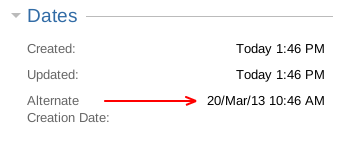
Repeat this process to all the issues you want to modify.
Perform the database update:
Always back up your data before making any database modifications. If possible, test any alter, insert, update, or delete SQL commands on a staging server first.
Stop your JIRA application.
Execute the below SQL to perform the update. Repeat this step for every issue that requires updating.
Click here to expand for JIRA 6.1 and higher...
Replace the references to
ABCwith the project key and123with the issue number.UPDATE jiraissue SET created = (SELECT datevalue FROM customfieldvalue WHERE issue = (SELECT id FROM jiraissue WHERE issuenum = '123' AND project = (SELECT id FROM project WHERE pkey = 'ABC') AND customfield = (SELECT id FROM customfield WHERE cfname LIKE 'Alternate Creation Date')) where issuenum = '123' AND project = (SELECT id FROM project WHERE pkey = 'ABC');This was tested on PostgreSQL and may require modifying based on the DBMS used. Please consult with your DBA on the appropriate syntax.
Click here to expand for JIRA 6.1 and lower...
Replace the
ABC-123for the issue key you want to modify.UPDATE jiraissue SET created = (SELECT datevalue FROM customfieldvalue WHERE issue = (SELECT id FROM jiraissue WHERE pkey = 'ABC-123') AND customfield = (SELECT id FROM customfield WHERE cfname LIKE 'Alternate Creation Date')) WHERE pkey = 'ABC-123';This was tested on PostgreSQL and may require modifying based on the DBMS used. Please consult with your DBA on the appropriate syntax.
Start the application and perform a full reindex. This is required as the indexes for the created date will be out of sync with the database.
Check if the creation date has been changed, for example:

Remove the custom field Alternate Creation Date and the issue update will be complete.
この内容はお役に立ちましたか?