How discovery Agents can export to Cloud instance
プラットフォームについて: Cloud と Data Center - この記事は クラウド プラットフォームとデータセンター プラットフォームの両方に等しく当てはまります。
Server* 製品のサポートは 2024 年 2 月 15 日に終了しました。Server 製品を実行している場合は、 アトラシアン Server サポート終了 のお知らせにアクセスして、移行オプションを確認してください。
*Fisheye および Crucible は除く
要約
Discovery Agents can transfer their local scan results using File Copy or SFTP export. These results are then picked up by a Collector or the Assets Discovery tool. While a direct upload to a cloud instance is suggested for efficiency (JSDCLOUD-11802), this feature is pending prioritization. Until then, you can use a Discovery Collector to export results to the Cloud.
このページの内容:
ソリューション
はじめる前に
Before you start exporting Agents scans to your Jira, make sure that:
Discovery Agents is installed on each device (Windows Environment only). Set up Discovery Agent
Discovery Collector is installed on a Windows device or Linux system. For Linux, install the latest Mono packages from the native Linux GUI. Set up Assets Discovery Collector
Shared path folder is accessible by both Discovery Agent and Collector. This can be a local path or an SFTP directory.
Exporting scan results
Let's imagine the following scenario: Discovery Toll can't scan remote laptops and Discovery Agents results should be uploaded to Assets in Cloud. In this case, to export scan results:
Install Discovery Agents.
The Discovery_Agent_Setup.msi installer is in the Discovery_x.x.x.zip file. By default, scan results are stored in the local device within the Agent installation directory under the
scansdirectory.Configure the Agent settings:
Edit the Agent.cfg file in the Agent installation directory.
Set the
DirectCopyPathelement to the shared path for exporting results. For example, to:C:\Program Files\Atlassian\Discovery Agent Installer\export. Ensure the path is accessible by both the Discovery Agent and the Collector host.In the following example, we use a local path but it could also be a remote path or even a SFTP as long as the Discovery Agent can access it as well as the Collector host. By default, Discovery Agents run a scan every 24 hours.
Example - Agent.cfg
<?xml version="1.0" encoding="utf-8"?>
<Settings
	xmlns:xsd="http://www.w3.org/2001/XMLSchema"
	xmlns:xsi="http://www.w3.org/2001/XMLSchema-instance">
	<ScanLogLevel>Debug</ScanLogLevel>
	<NextScanDate>2022-10-24T19:40:39.0555278+02:00</NextScanDate>
	<ScanInterval>24</ScanInterval>
	<AgentPort>51337</AgentPort>
	<JustUseFirstIP>false</JustUseFirstIP>
	<DeleteLogsAfter>7</DeleteLogsAfter>
	<DisableTCPListener>false</DisableTCPListener>
	<DirectCopyPath>C:\Program Files\Atlassian\Discovery Agent Installer\export</DirectCopyPath>
	<SFTPSettings>
		<TransferReties>5</TransferReties>
		<TranserRetryInterval>30</TranserRetryInterval>
	</SFTPSettings>
</Settings>
If you want to transfer the result data as an XML file to the configured target path, you can add an SFTP transfer setting. Add the following code to the
agents.cfgfile, inside of the<Settings>node:<SFTPSettings> <ExportPath>192.168.2.2/discovery/import</ExportPath> <UserName>yourUser</UserName> <Password>mysecurepassword</Password> <TransferReties>5</TransferReties> <TranserRetryInterval>30</TranserRetryInterval> </SFTPSettings>Alternatively, use
Discovery_Agent.exe -setupsftp(this will execute a small console configuration for the sftp transfer). Note that the password will be encrypted during the first startup.Restart Discovery Agent Service to apply settings.
Install Discovery Collector on a different device:
Run the command prompt with administrator privileges in the Discovery installation directory.
Install the Collector tool as a service using the command
Collector.exe -i.
Configure the Collector settings
Open Collector-Tool Settings with the command
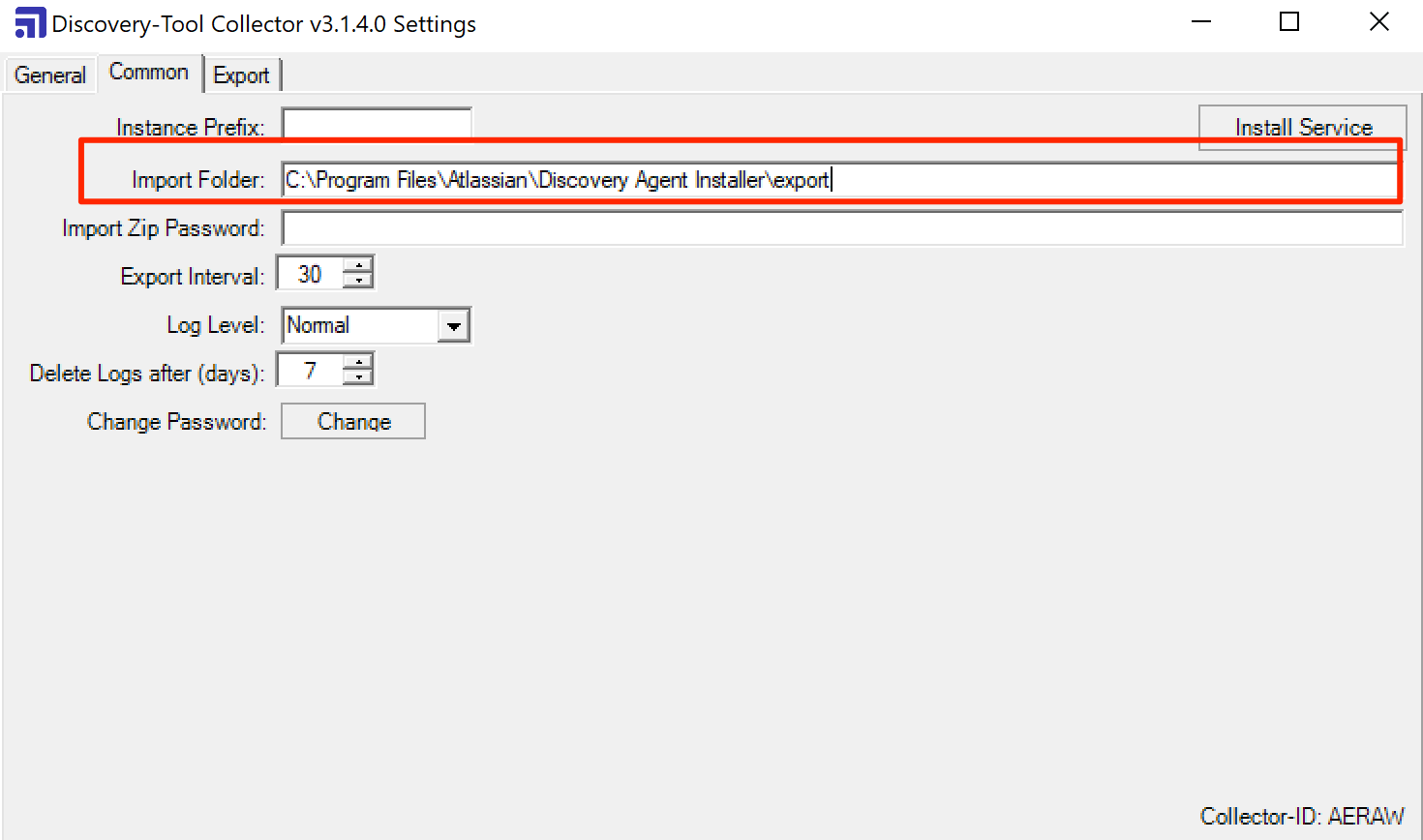
Collector.exe -s.In the Import Folder field, set the shared path where the Agents' scan results are exported.
Go to the Export tab and set Export Type to Cloud.
Add an auth token for secure data transfer into Assets. Generate a token for importing
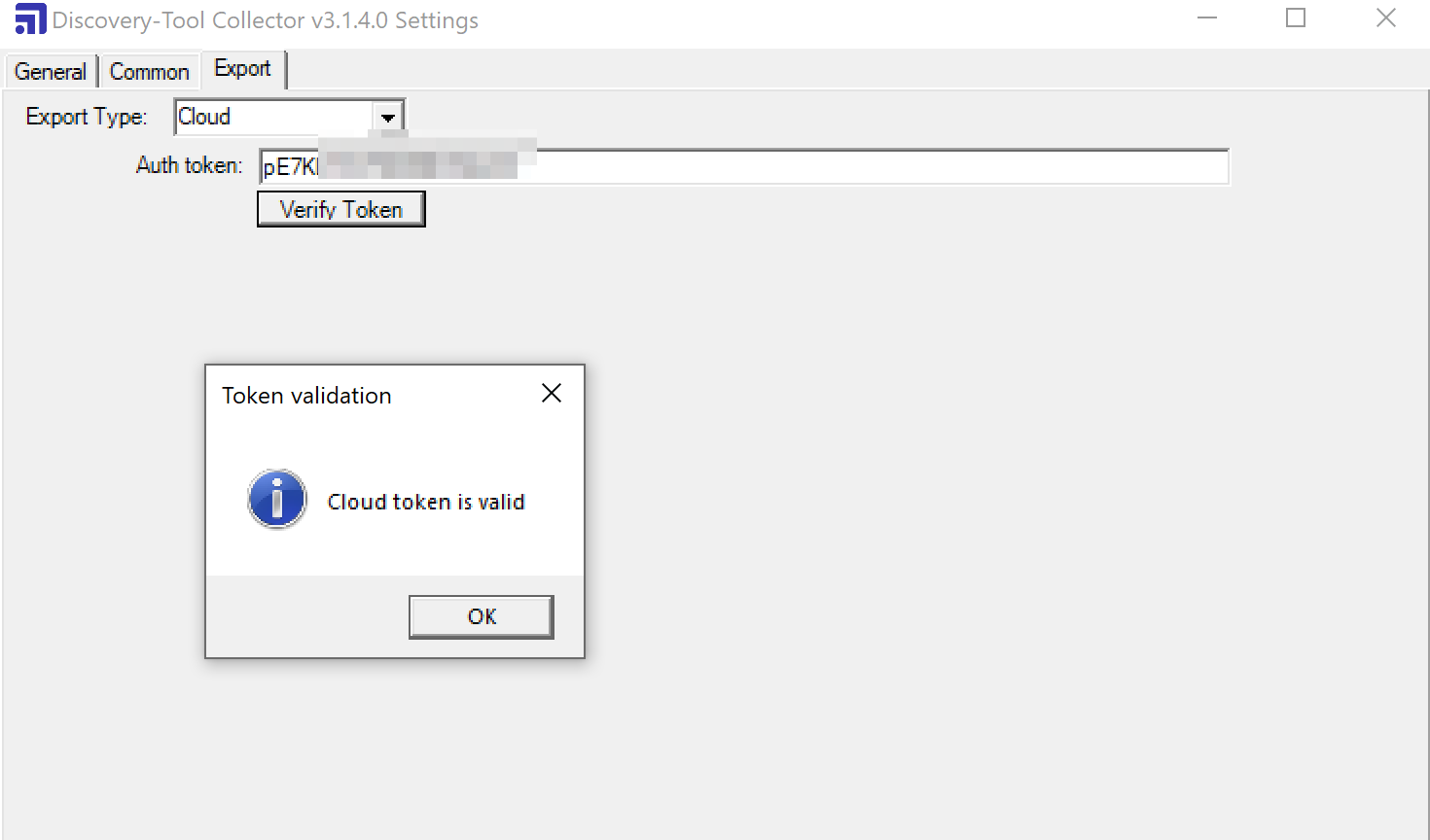
You can now close the Collector settings. Discovery Collector will run every 30 minutes by default. If any Agent scan results are found in the Import Folder, they will be exported to the Cloud.
この内容はお役に立ちましたか?