Unable to view Google Documents on Confluence pages
Platform Notice: Cloud Only - This article only applies to Atlassian apps on the cloud platform.
Summary
When viewing a Confluence page with a Google documented embedded, the macro doesn't load, and displays below error:
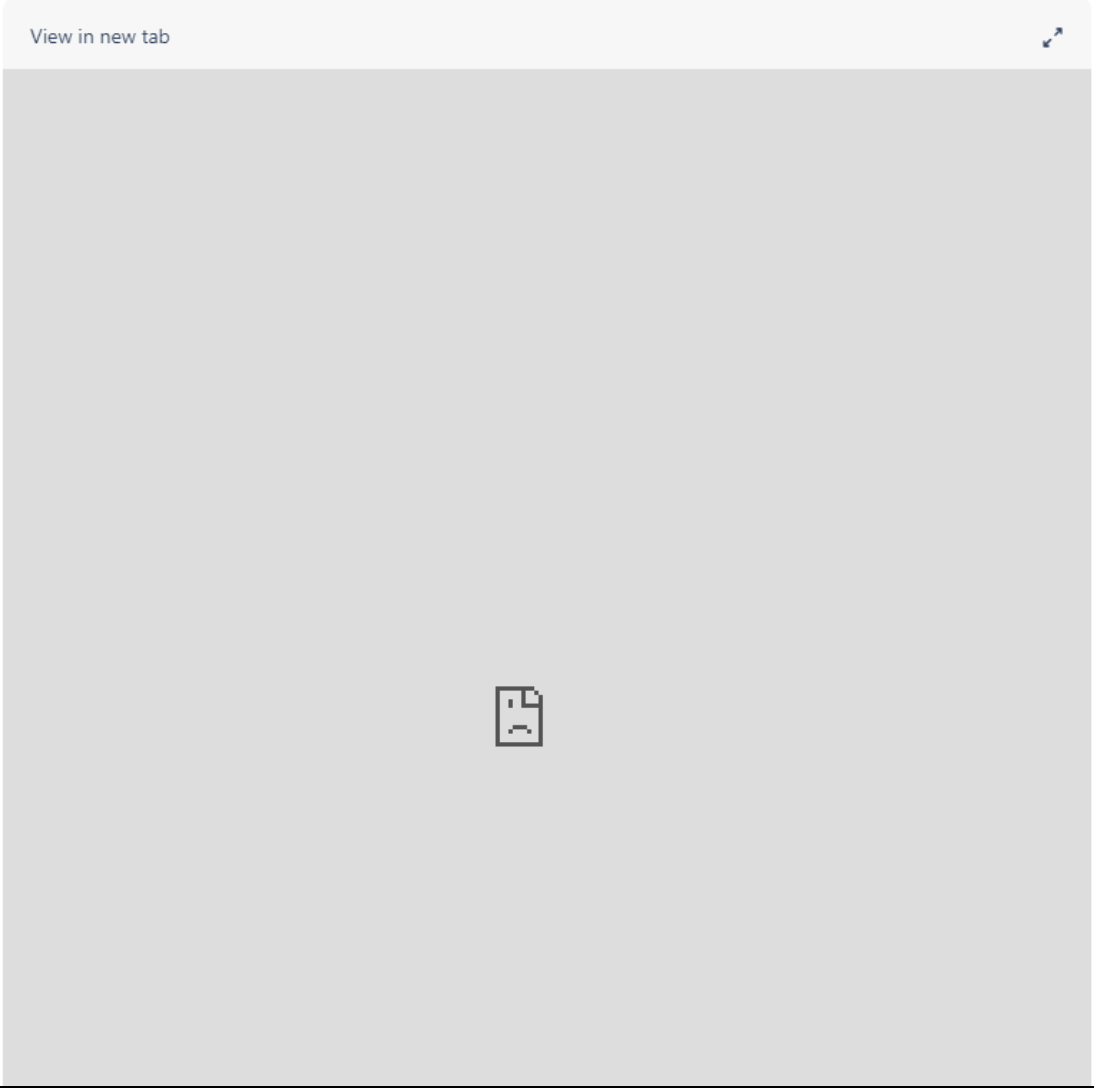
💡 It's possible that under the page icon, this message is displayed: accounts.google.com refused to connect
Environment
Confluence Cloud
Google Documents embedded with the official Google Drive add-on
Diagnosis
Access a page with a Google document embedded.
Check if the macro will load properly.
Cause
There can be some different causes for this behavior. This can be related with a browser issue (cached information, an installed extension, etc), or it can also be related with the integration between the Google account and the Confluence account.
Solution
First, let's try to isolate the problem by performing some browser troubleshooting steps:
Try accessing the page on Incognito Mode
The incognito/private mode won't load cached information, which can cause issues. Besides, generally installed extensions are not loaded on this mode too:
To open an Incognito window on Google Chrome, go to File > New Incognito Window, or:
Mac: Open Google Chrome and then press command + shift + N.
Windows: Open Google Chrome, and then press ctrl + shift+ N.
To open an Incognito window on Firefox, go to File > New Private Window, or:
Mac: Open Firefox and then press command + sift + P.
Windows: Open Firefox and then press ctrl + shift + P.
💡 Another valid test would be trying with a different browser.
In case the issue is also happening on the Incognito mode/different browser, please proceed.
Record the outcome of each troubleshooting step
Test the same Confluence page in your usual browser, in a private or incognito window, and in an alternate browser:
Note which tests successfully display the document and which display the connection error.
If you repeat the test after re-authorizing the Google integration, record that result separately. ℹ️ Note: A successful test in one browser indicates a local browser issue (such as cached data or a browser extension), but does not by itself pinpoint a specific extension or cache item as the cause.
Recreating the authorization between Google and Confluence accounts
The fist time you access a Google document on a Confluence page, you're prompted to approve the integration. Re-authorizing the integration is also a valid test. To do so:
Log into your Google account that is being used on Confluence to load the document.
You'll find a list of apps with access to your account. In there, you should find Google Drive for Confluence. Click on it.
Click on REMOVE ACCESS.
Then, open a new tab on the browser, and access a Confluence page with a Google file.
You should face the Switch accounts button. Click on it.
Authenticate to your Google account.
Approve the integration access.
Refresh the page on Confluence side.
Provide test results when requesting help
If the document still does not load after completing the browser troubleshooting steps and re-authorizing the integration, contact your Atlassian Site Administrator through your organization's internal support channel and provide:
The URL of the affected Confluence page.
The exact error message displayed (for example,
accounts.google.com refused to connect).The results from each browser test (normal window, incognito/private window, alternate browser).
The Google account email address used for the test and whether the behavior changed after re-authorizing. ⚠️ Important: Do not include passwords, API keys, or authentication tokens when sharing troubleshooting details.
Your Site Administrator can investigate site-level settings or raise a support ticket with Atlassian Support.
Was this helpful?