Bitbucket Data Center: Personal notifications not sent after Slack workspace migration
Platform Notice: Data Center Only - This article only applies to Atlassian apps on the Data Center platform.
Note that this KB was created for the Data Center version of the product. Data Center KBs for non-Data-Center-specific features may also work for Server versions of the product, however they have not been tested. Support for Server* products ended on February 15th 2024. If you are running a Server product, you can visit the Atlassian Server end of support announcement to review your migration options.
*Except Fisheye and Crucible
Summary
After migrating to a new Slack workspace, some Bitbucket Data Center users may stop receiving personal notifications. This article explains how to identify and resolve the issue.
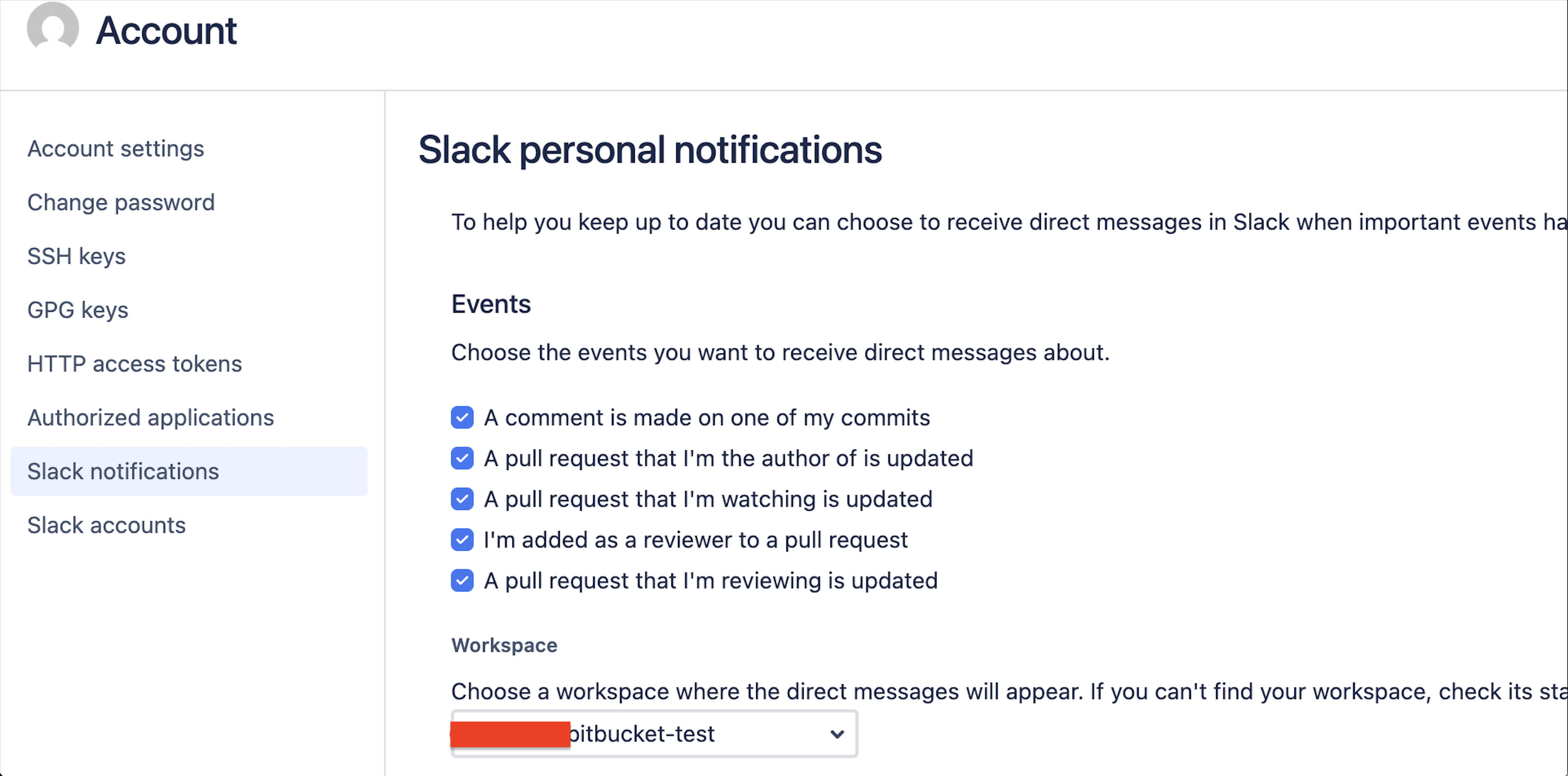
To access your personal notification settings, go to your User Profile > Manage Accounts > Slack Notifications.
These queries have been tested in a standard test environment. Your setup may differ, so please review and adapt as needed.
If you are not familiar with database operations, ask your database administrator (DBA) for assistance. Always test these changes in a staging environment before applying them to production.
Shut down Bitbucket Data Center before making any database updates to avoid issues with cached data.
Take a Database backup before making any changes to have the ability restore its previous state if something goes wrong.
Diagnosis
Check workspace ID or team ID from the table AO_1F9F46_AOSLACK_LINK for the slack links.
select * from "AO_1F9F46_AOSLACK_LINK";Take note of workspace or team ID
Check if any users are still mapped to the old slack workspace ID or team ID from the table sta_shared_lob
select * from sta_shared_lob where lob_data like '%<INCORRECT_ID>%';Replace <INCORRECT_ID> with workspace or team ID
Check the output JSON to see if the Slack workspace or team ID match the new workspace for affected users. The
lob_datacolumn stores a JSON structure with configuration and settings. Only the com.atlassian.slack.personal.notification.team value needs to be captured.
Example JSON
{
  "com.atlassian.slack.pr_reviewer_created": true,
  "SEEN_BITBUCKET_UPGRADE_PAGE": true,
  "com.atlassian.slack.pr_author": true,
  "feature.discovery.effective-permissions.discovered": true,
  "user.created.version": "4.11.2",
  "USER_BROWSER_TIME_ZONE_OFFSET": "-330",
  "com.atlassian.bitbucket.audit:retention-config-review-notification": false,
  "com.atlassian.slack.commit_author_comment": true,
  "com.atlassian.slack.personal.notification.team": "T03BZF9E1BQ",
  "com.atlassian.slack.pr_reviewer_updated": true,
  "com.atlassian.slack.pr_watcher": true
}
Cause
Mismatch of Slack workspace or team IDs in Bitbucket’s database after Slack workspace migration.
Solution
Option 1: Reconnect Slack Account (Recommended for most users)
Ask the affected user to revoke and re-add their Slack workspace account:
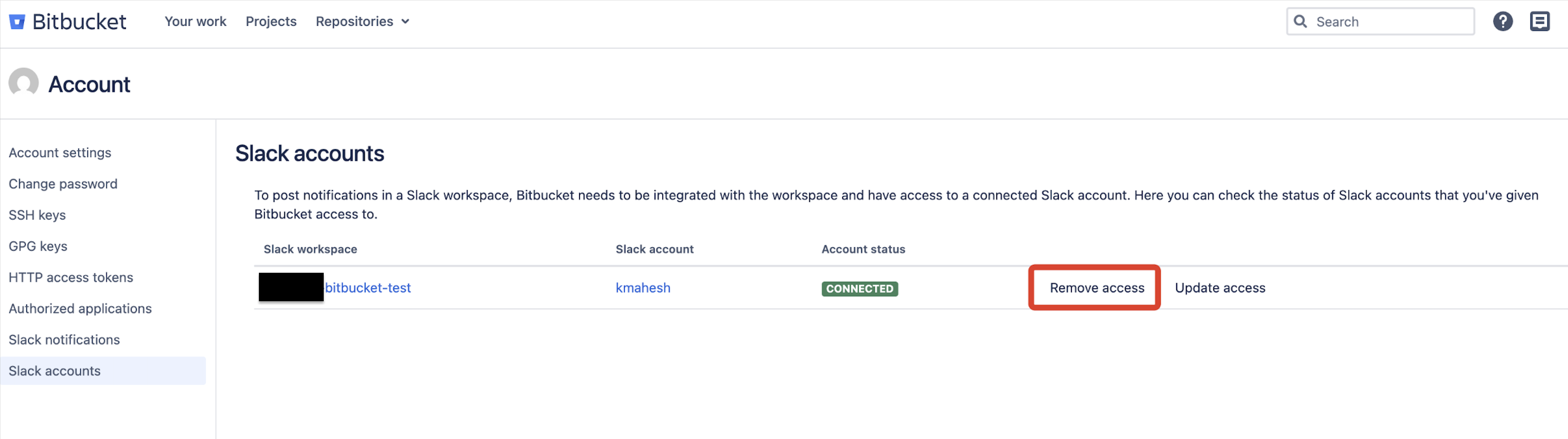
Go to Manage Accounts > Slack Accounts
Remove access of the old Slack workspace
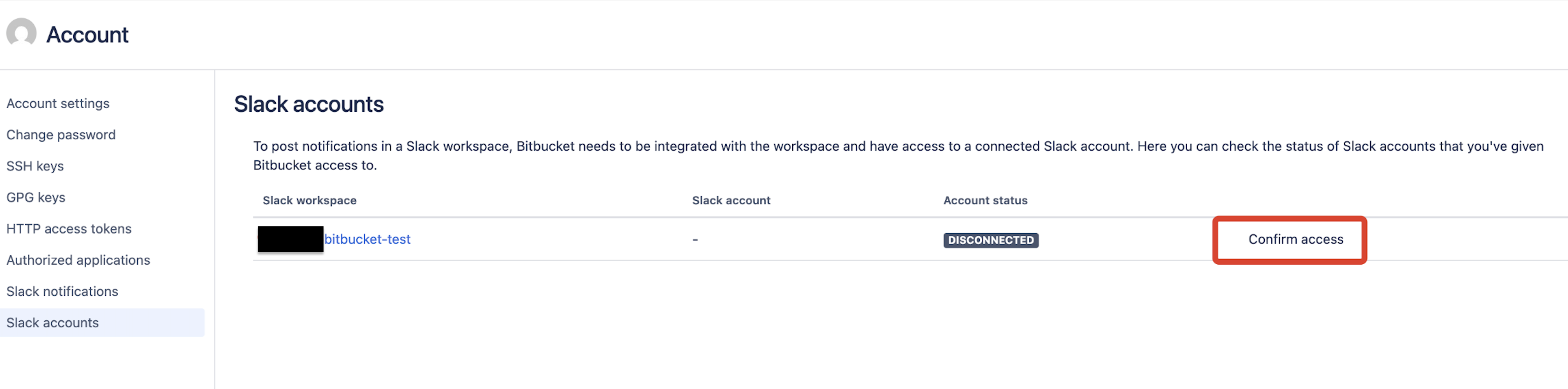
Confirm access of the new Slack workspace
If revoking and confirming the new Slack workspace does not work proceed with option 2 below.
Option 2: Update Database Manually (For administrators and DBAs)
Identify users still mapped to the old Slack workspace ID by running the following SQL query
SELECT snu.user_id, snu.name, snu.slug, ssl.id AS lob_id, ssl.lob_data
FROM sta_shared_lob ssl
  INNER JOIN sta_user_settings sus ON sus.lob_id = ssl.id
  INNER JOIN sta_normal_user snu ON snu.user_id = sus.id
WHERE ssl.lob_data LIKE '%"com.atlassian.slack.personal.notification.team":"<INCORRECT_ID>"%';
Stop Bitbucket service
Update the Slack team ID for affected users Update the
lob_datafield to reflect the new Slack workspace or team ID:UPDATE sta_shared_lob SET lob_data = REPLACE(lob_data, '"com.atlassian.slack.personal.notification.team":"<INCORRECT_ID>"', '"com.atlassian.slack.personal.notification.team":"<CORRECT_ID>"') WHERE <CONDITION>;Replace <INCORRECT_ID> and <CORRECT_ID>
Adjust <CONDITION> to target only the affected records.
Commit the changes to the database
Start Bitbucket service.
Once you have updated the database and restarted Bitbucket Data Center, ask affected users to test their Slack notifications. If issues persist, review the steps above or contact Atlassian Support for further assistance.
Was this helpful?