"Having trouble logging you in" error with SAML SSO login to Atlassian Cloud
Platform Notice: Cloud Only - This article only applies to Atlassian apps on the cloud platform.
Summary
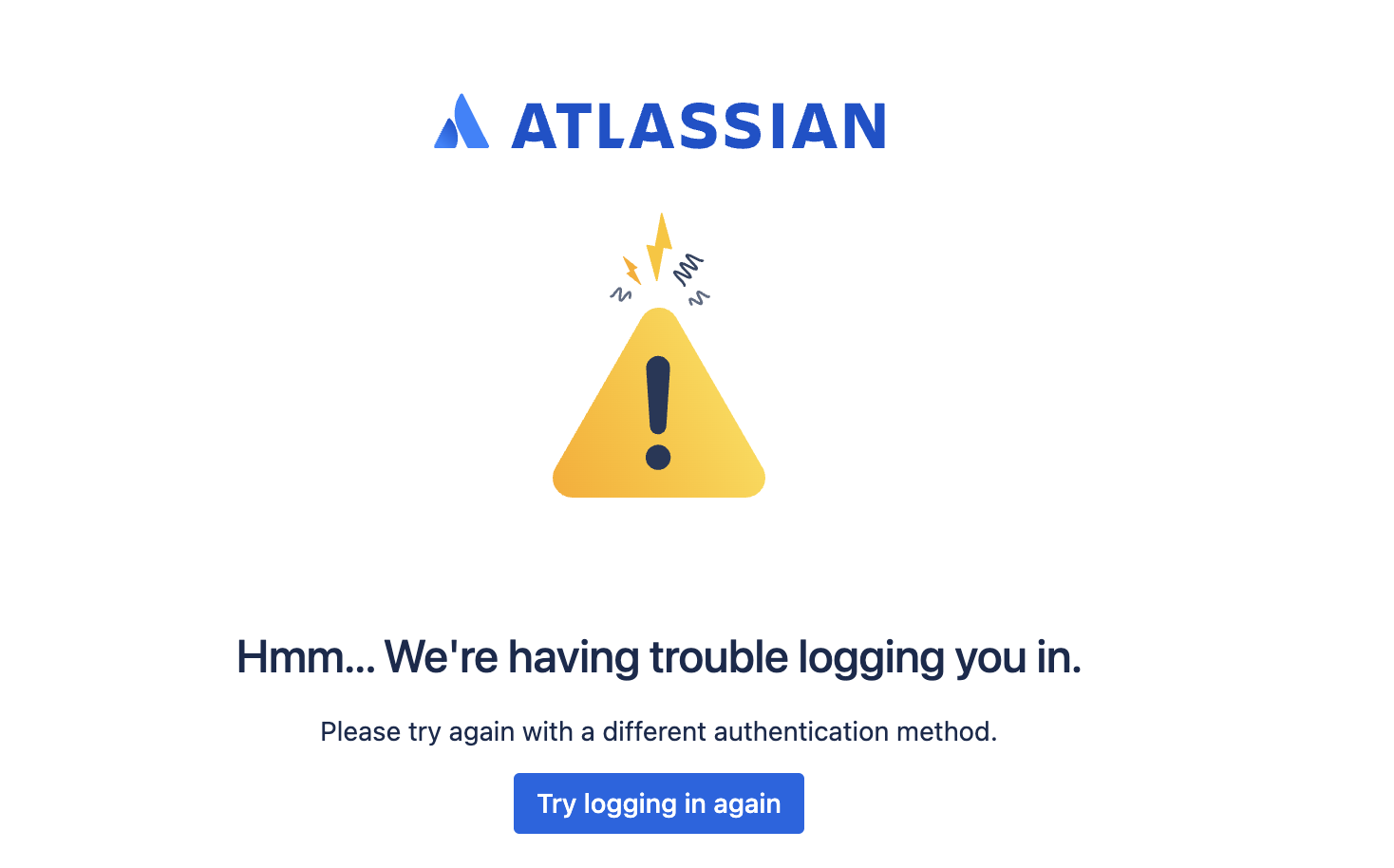
A user trying to log in to Atlassian Cloud via SAML SSO receives the error message "Hmm...We're having trouble logging you in. Please try again with a different authentication method."
The URL of the page showing the error message includes:
error=access_denied&error_description=authentication-policy-strategy-mismatch
Environment
Atlassian users set up for SAML SSO authentication for logging in to Atlassian Cloud apps.
Cause: NameID attribute mismatch
The Atlassian identity platform looks at the NameID attribute that is sent from the IDP and matches that value to the Atlassian account email address of the user that is trying to log in. This error is generally returned when the email address is sent by IDP for the NameID attribute in the SAML response is not the expected value and/or the end user's Atlassian account does not have enforced SSO enabled.
Solutions
There are 3 main scenarios with different solutions:
Scenario 1: The user attribute value in the IDP does not match the user's expected Atlassian account email address
Scenario 2: The end user does not have enforced SSO enabled
Scenario 3: The end user is logged into an unexpected Atlassian account
Scenario 1: IDP and Atlassian Account mismatch
Check that the user attribute mapped to the NameID claim in the IDP correctly maps a value that matches the expected Atlassian account email address of the end user. For example, if the primary email address is mapped to the NameID claim in the IDP, then does the end user's Atlassian account email address match the user's primary email address in the IDP?
If not, then either:
The Atlassian account email address needs to be changed to match the mapped user attribute in the IDP OR
The end user's attribute needs to be updated in the IDP to match the end user's Atlassian account email address OR
The NameID claim needs to be mapped to a different user attribute in the IDP
The NameID claim needs to be mapped to an IDP user attribute that matches the end user's expected Atlassian account email address.
For Entra ID(formerly Azure AD), the NameID attribute is defined by the Unique User Identifier attribute. This mapping can be found in Entra ID by navigating to Enterprise Applications > locate the Atlassian Cloud (default name) application > Single sign-on > Attributes & Claims
For Okta, the NameID attribute is defined by the Application Username format mapping. This mapping can be found in Okta by navigating to Applications > locate the Atlassian Cloud (default name) application > Sign-on (tab) > Credential details
Scenario 2: Enforced SSO not enabled
If the user attribute mapped to the NameID claim correctly matches to a value that matches the expected Atlassian account email address of the end user, then ensure that the end user is a member of an Authentication where "Enforced SSO" has been enabled.
Documentation:
Scenario 3: Unexpected/incorrect Atlassian account
There can be a situation where the end user is logged into an incorrect account because the IDP is sending a NameID value used by another user's Atlassian account. For example, if the IDP sending userB@domain.example as the NameID claim value during the SAML login flow, then the end user will be logged in as userB@domain.example even though they authenticated as userA@domain.example.
In this situation, ensure that the IDP is sending the expected/correct NameID claim value - see Scenario 1.
Was this helpful?