How to get remote entity details using work item remote links
Platform Notice: Cloud Only - This article only applies to Atlassian apps on the cloud platform.
Summary
In this article, a remote entity refers to the related work linked to a Jira work item. This can be from a first-party app, such as a Confluence page or a Jira work item from another site, or it can come from an external source, such as a web link or a custom app link.
To join a work item with the remote entity it is linked to, you must include the Jira site in the Atlassian Data Lake connection in Analytics. If your work item is linked to Jira sites outside your organization, they won’t be accessible using this method. In those cases, you'll only have the details available in the remote link table.
Solution
Link to a Confluence page
This section will show you how to link a Jira work item to a Confluence page.
Get the work item and remote link details
In your query, select the Hostname and Entity reference columns. Ensure that Hostname is the first selected column.
Add a query filter where Remote link type =
confluence. Note that the casing for the value is important.Optional: Add any additional work item fields you want in your final result and apply additional filters to further limit the work items. For our example, we added the Work item key column and limited the work items to a single project with the key JLT.
Select Run query.

The query result should look similar to the following, where Hostname is the leftmost column:

Get the Confluence site details
Add a new query and switch it to SQL mode.
Paste the following SQL into the SQL editor:
SELECT `Workspace`.`url` AS `URL`,
       `Workspace`.`workspace_id` AS `Workspace ID`
FROM `workspace` AS `Workspace`
where `Workspace`.`workspace_id` in (select distinct workspace_id from `confluence_page`)
LIMIT 1000;
This returns a list of sites with Confluence instances.
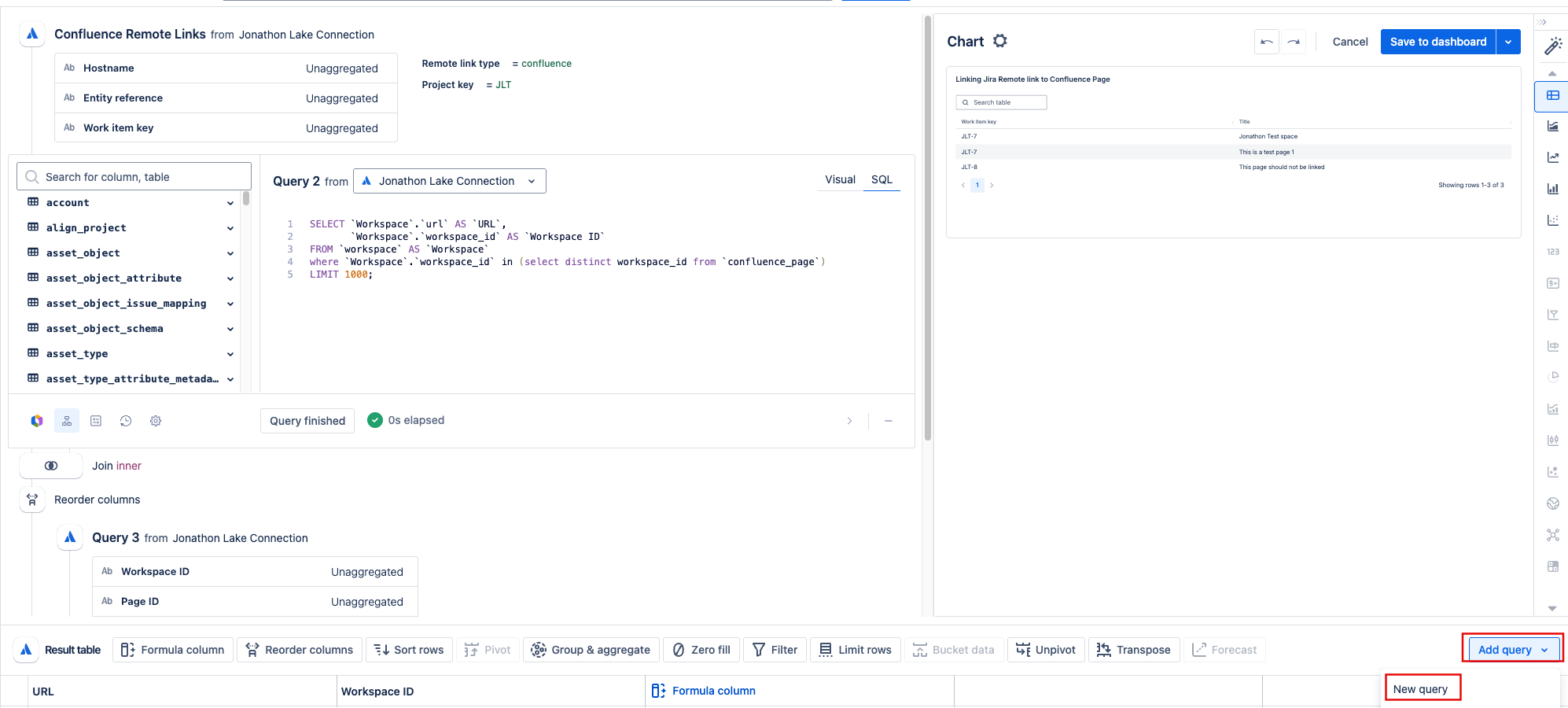
Select Run query.
Edit the Join step so it uses an Inner join on the first 1 columns.

Reorder the columns, so Workspace ID and Entity reference are now the leftmost columns.
The query result should look similar to the following, where Workspace ID, Entity reference, and Hostname are the leftmost columns:

Get the Confluence page details
Add another query and select the Workspace ID and Page ID columns.
Optional: Add any additional page fields you want in your final result. For our example, we added the Title column.
Ensure that the Workspace ID and Page ID columns are the 1st and 2nd columns listed in the query, respectively, by dragging them to reorder.
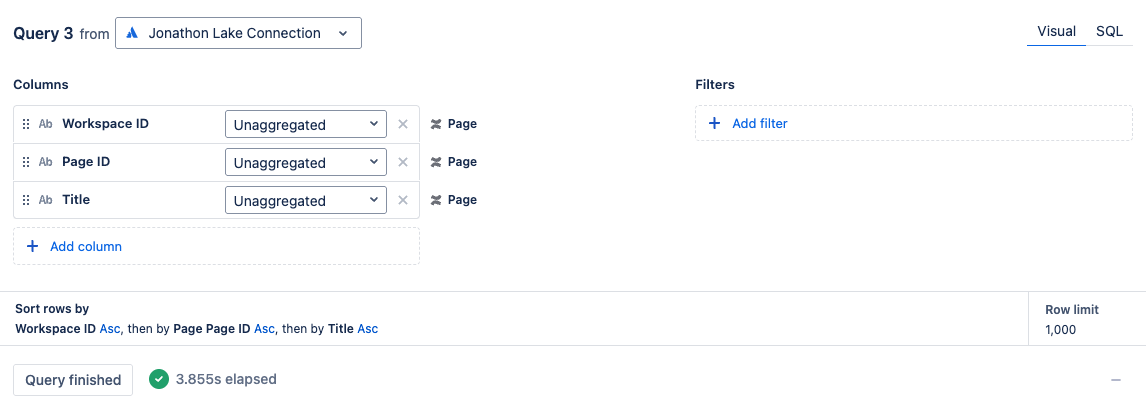
Select Run query.
Add a Formula column step, then select Custom as the formula type, and enter the following formula to extract the reference used in the remote links from the page IDs:
SUBSTR("Page Page ID", LENGTH("Page Page ID")- INSTR(REVERSE("Page Page ID"),'/')+2)Edit the Join step so it uses an Inner join on the first 2 columns.

The result should look similar to the following, where Workspace ID, Entity reference, and Hostname are the leftmost columns:

Clean up the final result
Hide the Hostname, Entity reference, and Workspace ID columns, so your final result is left with the optional additional columns from your queries.
Rename your columns as desired.

Link to a remote Jira work item
This section will show you how to link a Jira work item to a remote Jira work item.
Get the work item and remote link details
In your query, select the Hostname and Entity reference columns from the Work item remote link table. Ensure that Hostname is the first selected column.
Add a query filter where Remote link type =
jira. Note that the casing for the value is important.Optional: Add any additional work item fields you want in your final result and apply additional filters to further limit the work items. For our example, we added the Work item key column from the Work item table and the Relationship column from the Work item remote link table, and limited the work items to a single project with the key JLT.
Select Run query.

The query result should look similar to the following, where Hostname is the leftmost column:

Get the remote Jira site details
Add a new query and switch it to SQL mode.
Paste the following SQL into the SQL editor:
SELECT `Workspace`.`url` AS `URL`,
       `Workspace`.`workspace_id` AS `Workspace ID`
FROM `workspace` AS `Workspace`
where `Workspace`.`workspace_id` in (select distinct workspace_id from `jira_issue`)
LIMIT 1000;
This returns a list of sites with Jira instances.

Select Run query.
Edit the Join step so it uses an Inner join on the first 1 columns.

Add a Formula column step, select Custom as the formula type, and enter the following formula to concatenate the workspace IDs with the entity references:
"Workspace ID" || '::' || "Entity reference"Reorder the columns so the new Custom formula column is the leftmost column.
The query result should look similar to the following:

Get the remote Jira work item details
Add another query and select the Work item ID column.
Optional: Add any additional work item fields you want in your final result. For our example, we added the Work item key column.
Ensure that the Work item ID column is the 1st column listed in the query by dragging it to reorder.
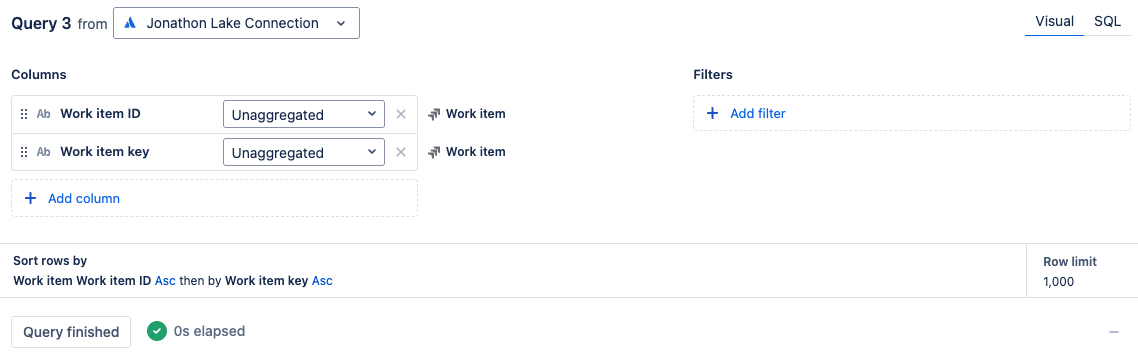
Select Run query.
Edit the Join step so it uses an Inner join on the first 1 columns.

The result should look similar to the following, where Custom formula is the leftmost column:

Clean up the final result
Hide the Custom formula, Hostname, Entity reference, and Workspace ID columns, so your final result is left with the optional additional columns from your queries.
Rename your columns as desired.

Was this helpful?